Follow us on Facebook
Breaking updates in your feed — tap to open
Your phone’s camera can do some wild stuff. Most of us barely tap into it. Night mode and portrait mode-two features that can turn a boring shot into something that hits different. We’ll walk through how they work, how to nail the shot, and how to polish things up with a quick edit. Doesn’t matter if you’re on iPhone or Android-these night mode photography tips will get you snapping pics you didn’t think were possible.
Understanding Night Mode
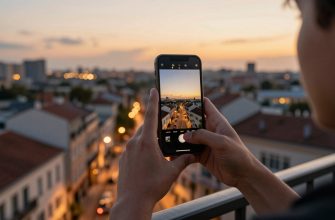
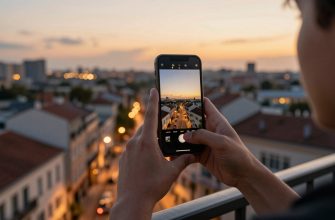
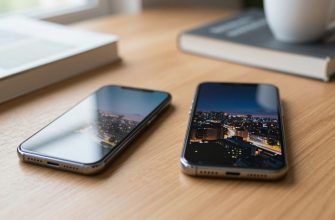
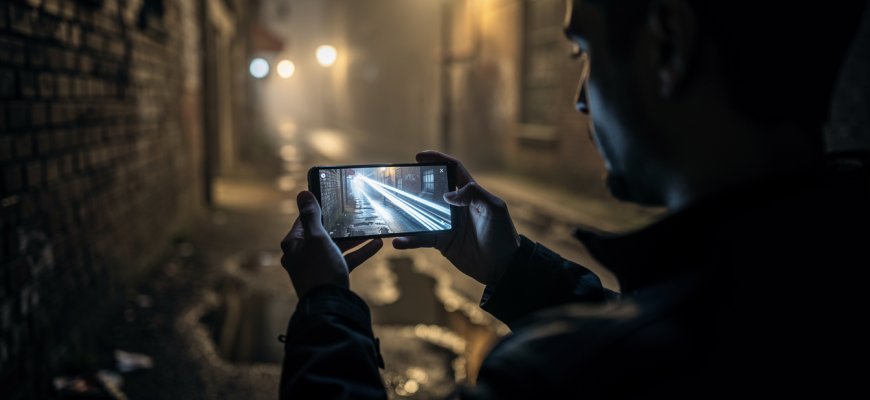
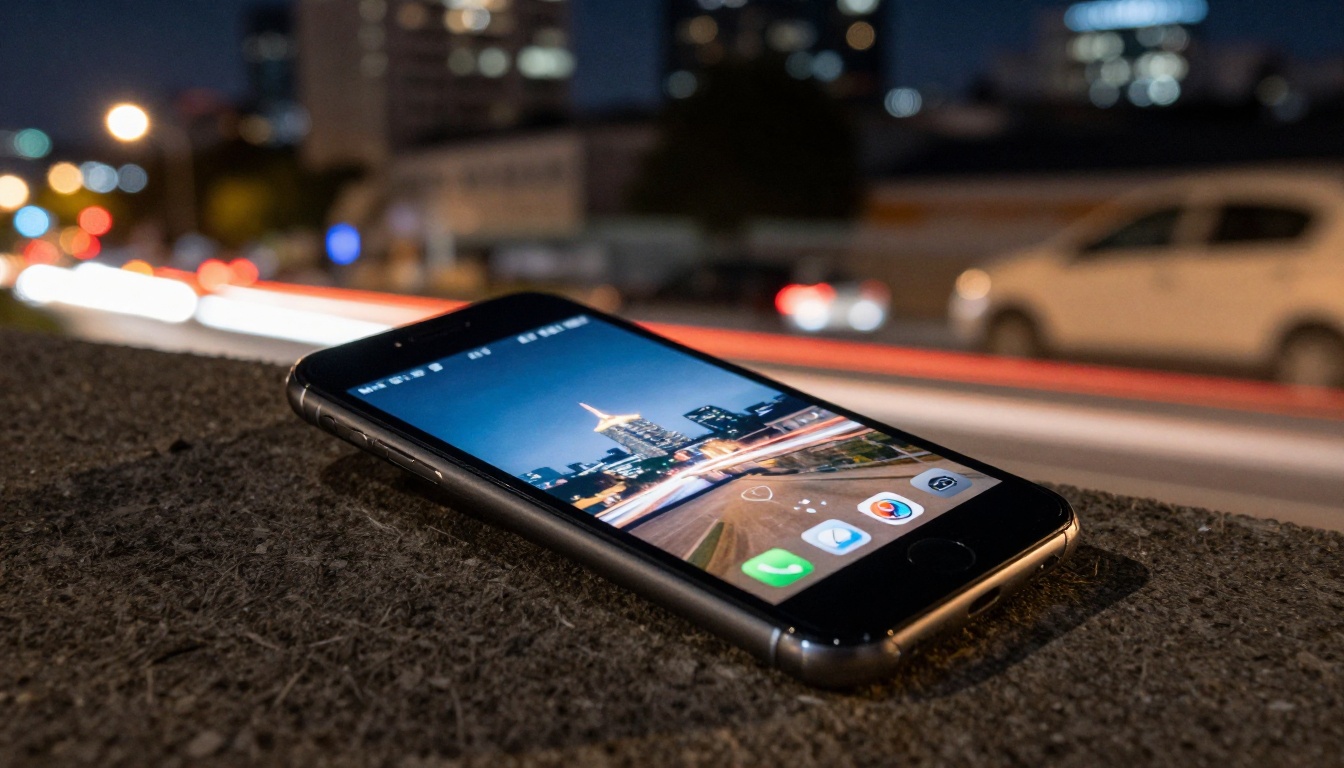
Night mode isn’t just some filter. It’s computational photography doing its thing. Your phone grabs a bunch of exposures fast, then blends them to lift shadows and kill noise. You get a shot that’s bright enough, but not fake-looking. Most flagship phones have it. And it usually kicks in on its own when it’s dark.
Stability is the big deal here. Even a tiny shake can blur things during that longer capture. Lean on a wall. Rest the phone on something solid. Got a tripod? Use it. Some phones actually notice the tripod and stretch the exposure even more. Don’t aim right at bright lights-you’ll get flare or blown-out spots.
Night mode isn’t just for outside. Indoors, it’s killer. Dim rooms, concerts, candlelit dinners-it works. Play with the exposure slider. Dial it down a bit to keep those moody shadows. Push it up to reveal hidden stuff. Thing is, moving subjects can ghost. So ask people to freeze for a sec.
Night mode works best when you treat it like a long exposure on a traditional camera-stability and patience are your best tools.

Mastering Portrait Mode
Portrait mode fakes that shallow depth of field you get from a DSLR and a wide-aperture lens. It picks out your subject and blurs the background, so the person or thing pops. It’s not just for faces. Try it on pets, food, flowers. And you can usually tweak the blur strength before or after the shot.
Distance is key. Stand about two to eight feet away for a natural look. Too close and the phone gets confused separating stuff. Too far and the effect gets meh. Good light still matters. Portrait mode won’t fix harsh shadows or flat light. Soft window light? That’s the sweet spot.
Watch those edges. Messy hair or detailed clothes can trip up the depth map, giving you weird cutouts. Check the shot after. Use the depth editor to fine-tune the blur or shift the focus point. Some phones even let you swap lighting styles-studio, contour, stage light-for a dramatic vibe.
Editing for Professional Results
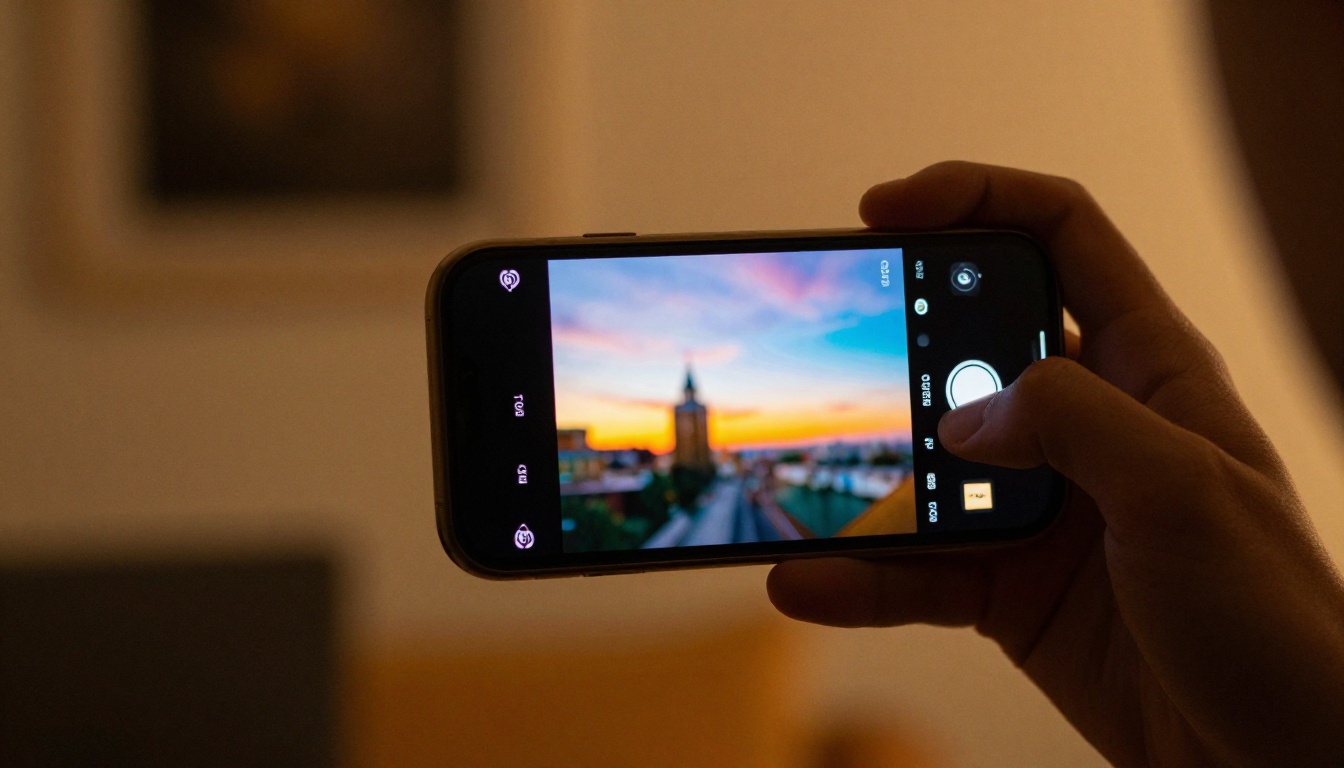
Even the best shots can use a quick tweak. Built-in photo apps have solid tools that are easy to pick up. Start with cropping to fix composition. Then play with exposure and contrast to add some punch. Night mode images often need a slight warmth increase to offset that cool artificial light tone.
For portraits, go easy on skin smoothing and blemish removal. Overdo it and you get that plastic look. Instead, focus on eyes and facial contours-use sharpness and structure sliders. Lots of apps now have AI tools that can swap backgrounds or add studio lighting after the fact.
If you’re ready to level up, third-party apps offer curves, selective color, noise reduction. But don’t sleep on the basics. A well-composed, properly exposed photo barely needs fixing. Sometimes less really is more.
Quick Tips for Any Phone
These steps work no matter what phone you’ve got. Make them a habit and your mobile photography will improve fast.
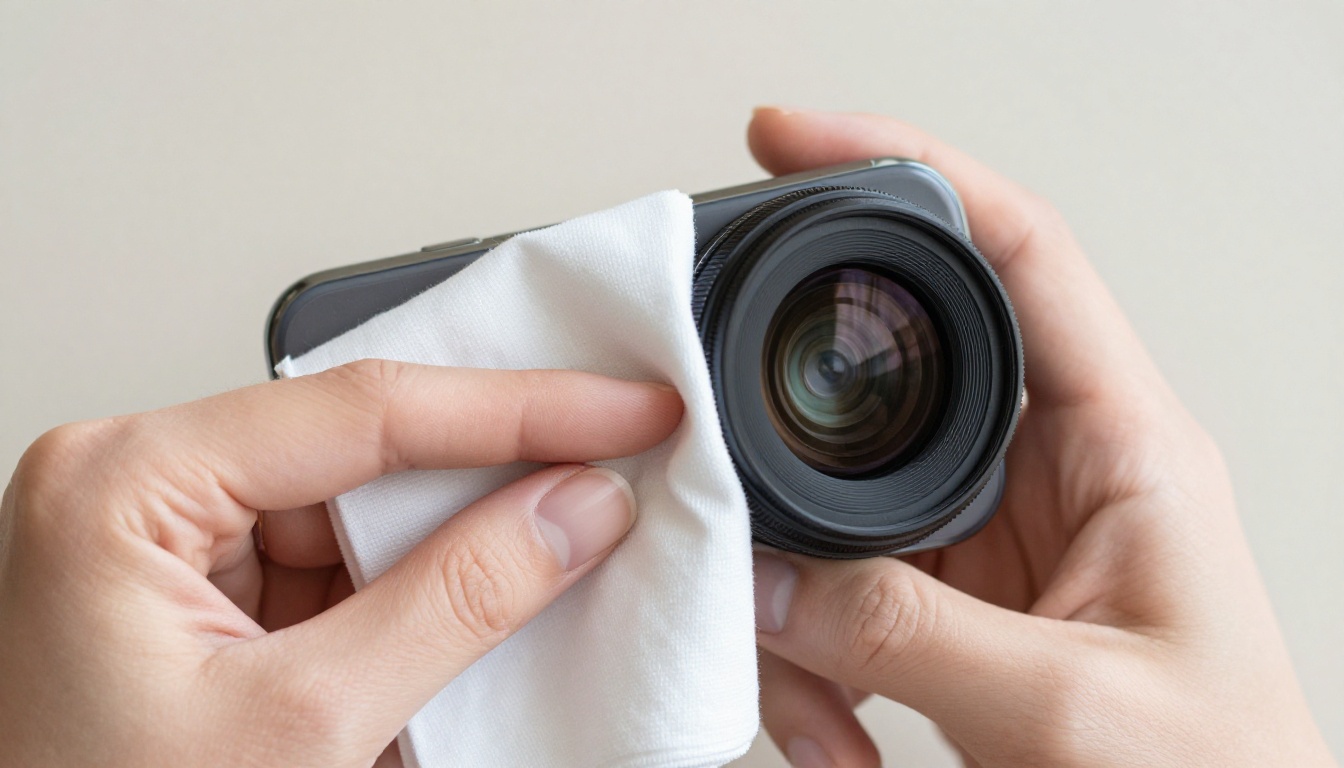
- Clean your lens before every shoot-a smudged lens is the most common cause of soft images.
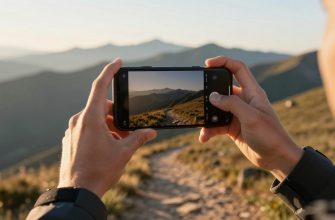
- Tap to focus and slide to adjust exposure, this simple action prevents blown-out skies or underexposed faces.
- Use grid lines to apply the rule of thirds, placing key elements along the intersections.
- Shoot in RAW format if your phone supports it, you’ll have more flexibility when editing white balance and exposure.
- Experiment with different perspectives-crouch low, climb high, or tilt the phone for dynamic angles.
Mastering night mode and portrait mode takes practice, but it’s a pretty gentle learning curve. Start with one trick, check your results, and build from there. Your phone’s camera is a powerful creative tool-unlock what it can do and capture images you’ll be proud to share.