Follow us on Facebook
Breaking updates in your feed — tap to open
Apple has never been one to shy away from a radical redesign, and with the iOS 26 Camera app, they’ve thrown out the familiar playbook. This isn’t just a fresh coat of paint; it’s a fundamental rethinking of how we interact with our iPhone’s most powerful creative tool. Aiming to bridge the gap between professional-grade control and point-and-shoot simplicity, the update presents a stunning, if sometimes overwhelming, new vision. For photographers and content creators, it’s a mixed bag of groundbreaking features and frustrating adjustments. Let’s dive into what makes the iOS 26 Camera app tick, from its shimmering new interface to its hidden power-user tricks.
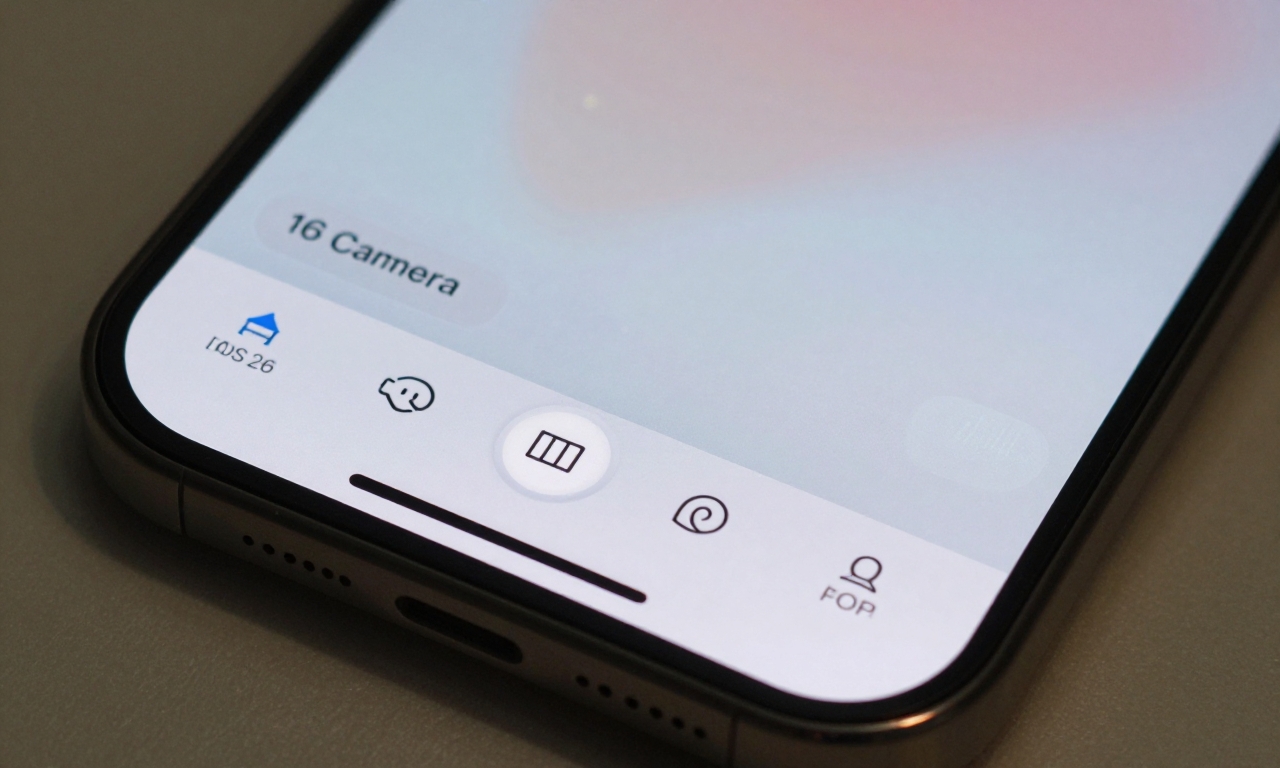
The Liquid Glass Interface: Beauty or Beast?
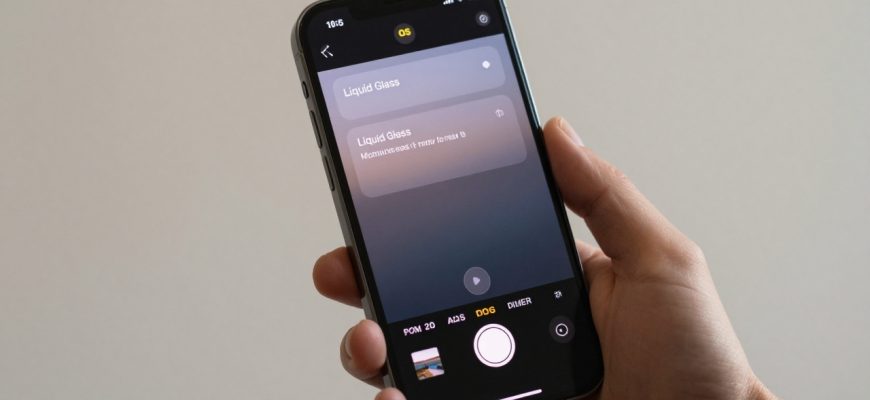
First impressions are dominated by the new Liquid Glass design language. Menus and controls now feature a translucent, shimmering aesthetic that feels alive, reacting subtly to light and movement. In controlled lighting, it’s undeniably beautiful-a futuristic sheen that makes the camera app feel like a premium instrument. However, this beauty comes at a cost. In direct sunlight or bright environments, the translucency can create a visually busy, overwhelming experience. Text and icons can get lost in the glare, making quick adjustments a challenge.
The good news? Apple hasn’t forgotten accessibility. Deep within the Settings app, you can dial down the transparency effects significantly, reverting to a more solid, high-contrast look. It’s a crucial toggle for anyone who finds the default design taxing. The core layout shift is also significant. The traditional mode selector has been reimagined as a refreshed mode wheel that elegantly simplifies switching between Photo, Video, Portrait, and Panorama. But there’s a catch: its placement sits unusually low on the screen. This design choice, while perhaps aimed at thumb-friendly operation, flirts dangerously with the iPhone’s multitasking bar. More than a few early testers have reported accidentally swiping out of the camera app mid-shot-a frustrating hiccup in an otherwise fluid system.
Mastering the Hidden Gesture Language
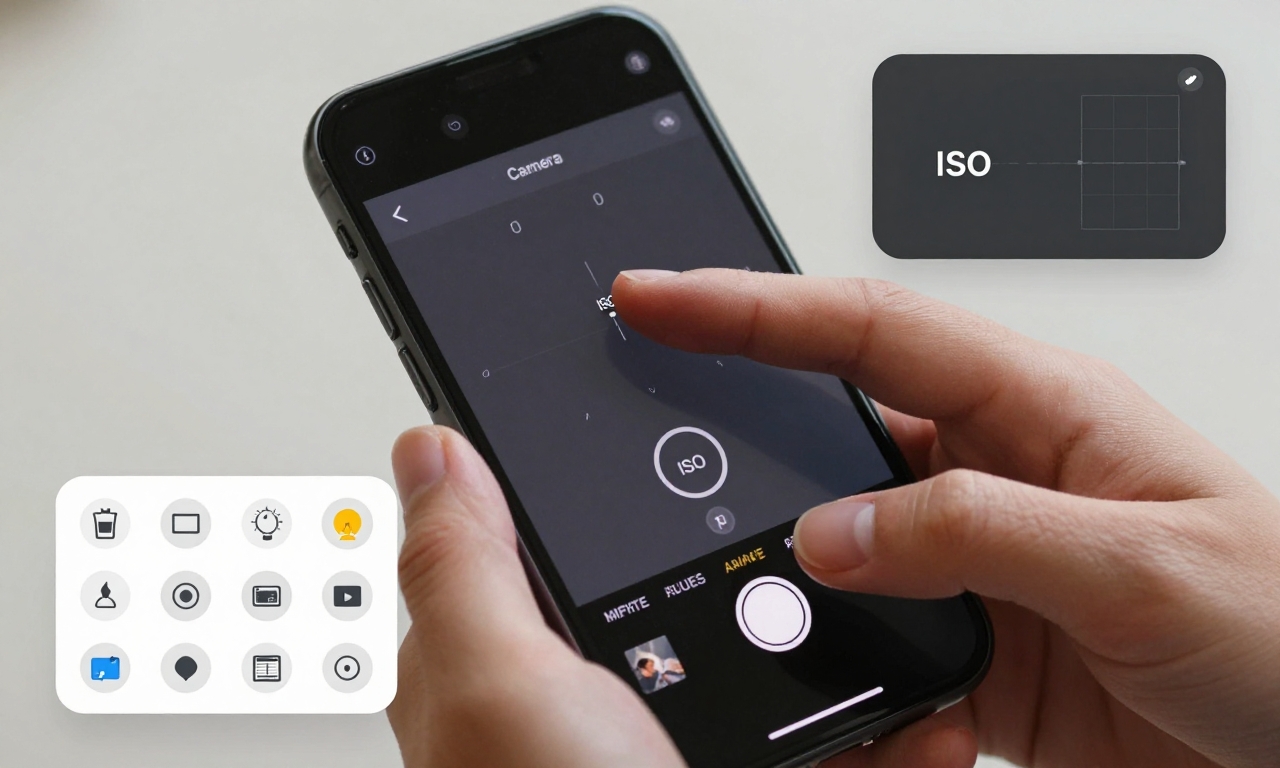
If the Liquid Glass interface is the showpiece, the new gesture system is the secret engine. Apple has buried a wealth of controls behind intuitive, yet initially opaque, finger movements. This is where the “prosumer” focus becomes most apparent.
- Tap to Reveal: Lightly tapping on labels like “ISO” or “Shutter Speed” now expands detailed controls instead of just selecting them.
- Shutter Swipe: A subtle swipe up or down in the area immediately surrounding the large shutter button toggles between burst mode, timer, and filters.
- Floating Tool Palettes: Pinch near the viewfinder corners to summon floating, customizable icon palettes for white balance, grid lines, or aspect ratio.
Once committed to muscle memory, these gestures are incredibly efficient, allowing for rapid-fire adjustments without ever diving into a menu. But the learning curve is steep. The lack of persistent on-screen hints means new users will likely fumble through their first dozen photo sessions, unaware of the power at their fingertips. It’s a system that rewards patience and practice, potentially alienating casual users who just want to snap and go.
Panorama Gets a Major Upgrade
Panorama mode, often treated as a novelty, has received serious engineering attention in iOS 26. The computational photography algorithms have been supercharged to drastically reduce motion blur and improve edge stitching. The result is smoother, more cohesive wide shots, even with moderate hand movement. However, the age-old rules of panorama photography still apply: slow, steady sweeps yield the best results. The update also unlocks vertical panorama capabilities, finally offering a native way to capture towering skyscrapers, waterfalls, or full-length portraits without awkward cropping. This opens new creative avenues for architectural and adventure photographers.
Smart Features and Creative Expansions
Beyond the core interface, iOS 26 sprinkles in several clever, if occasionally inconsistent, new features.
The new lens cleaning hint system uses the ultra-wide sensor to detect potential smudges or debris on the main lenses, displaying a subtle notification. In theory, it’s a genius quality-of-life feature. In practice, its reliability is hit-or-miss, sometimes missing obvious fingerprints or flagging clean lenses in certain harsh lights.
Camera control options have been expanded, allowing users to toggle on-screen indicators for level, histogram, and focus peaking. While welcome, the customization feels half-baked. You can’t reposition these elements or adjust their opacity, a missed opportunity for photographers who like to tailor their workspace.
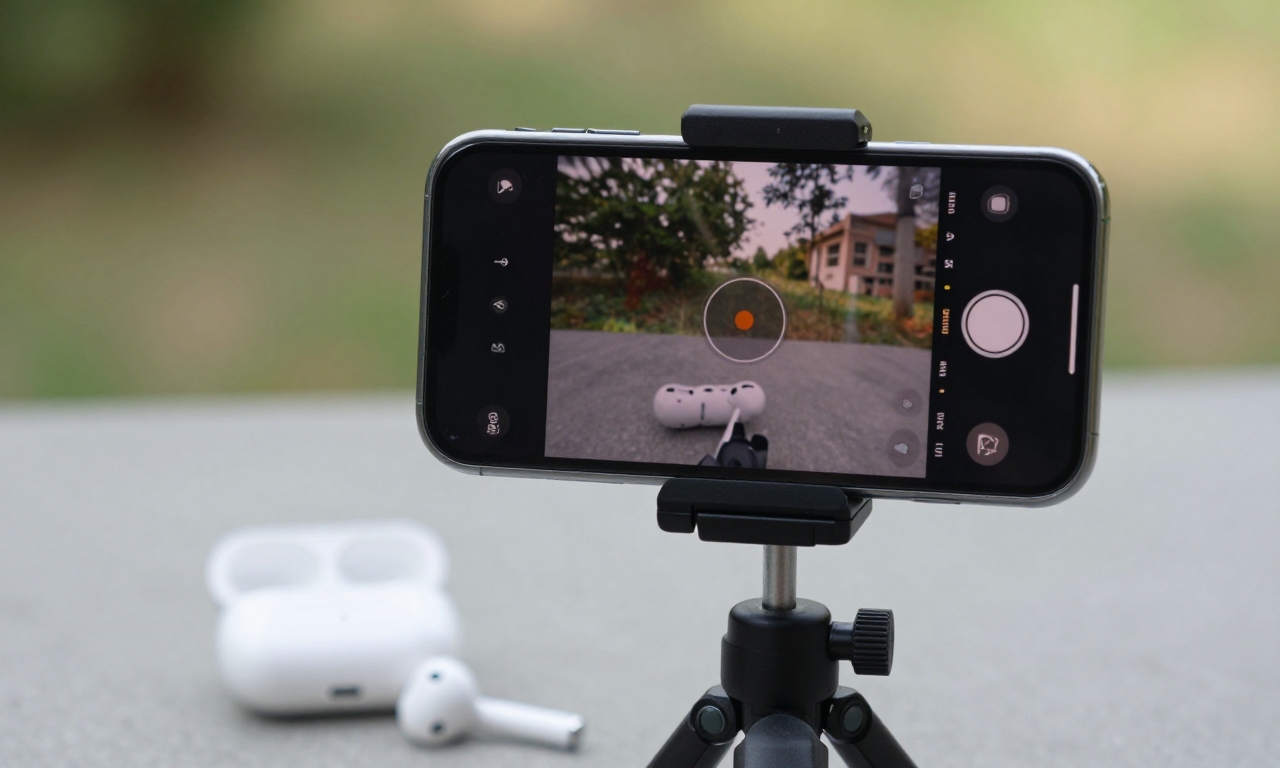
The most seamless and impressive addition, however, is the deep AirPods integration. When your AirPods are connected, they transform into a professional audio recorder and remote shutter.
This is a game-changer for solo content creators, vloggers, and interviewers. You can capture studio-quality, synchronized audio directly to your video clips, and use a simple tap on your AirPod stem to trigger the shutter from a distance-perfect for group shots, tripod work, or hands-free operation.
Who Wins with iOS 26’s Camera Redesign?
The iOS 26 Camera app redesign is a bold, ambitious step. It successfully packs advanced professional tools into a consumer-facing package. For the dedicated photographer willing to climb its learning curve, the payoff is a more powerful, gesture-driven camera system than ever before. The panorama upgrades and AirPods integration are standout, genuinely useful innovations.
Yet, it stumbles on the promise of casual usability. The visually intense Liquid Glass UI and hidden gestures create initial barriers. The low-sitting mode wheel is a genuine ergonomic flaw. It challenges years of ingrained muscle memory, requiring a period of adaptation that not all users will embrace.
Verdict: Apple’s vision for the future of iPhone photography is clear: more power, more control, more immersion. The iOS 26 Camera app delivers that future today, but it asks you to meet it halfway. For pros and eager enthusiasts, it’s an exciting new toolkit. For the point-and-shoot crowd, it might feel like their favorite tool just got a confusing, if beautiful, new set of instructions.