Follow us on Facebook
Breaking updates in your feed — tap to open
Picking a note-taking tablet can feel like a total maze. So many choices. You just want something that feels like real paper, syncs your scribbles without a fuss, and keeps going through marathon study sessions or back-to-back meetings. We’re cutting through the fluff. What actually counts? How the pen feels, whether your favorite apps work, battery that won’t quit, and a screen that’s easy on the eyes. Student, artist, or nine-to-fiver-you’ll find your paperless sidekick here.
A killer note-taking tablet starts with the stylus. It’s all about lag, pressure, and grip. Low latency? Ink appears the moment you move. No waiting. High pressure sensitivity catches every tiny shift in your stroke. A matte screen protector can fake that paper texture, but some screens already cut glare. Try different pens if you get the chance. Your handwriting should just flow. No lag, no weirdness.
Apps turn your tablet into a productivity beast. You want handwriting recognition, cloud sync, and solid organization. Notability, GoodNotes, OneNote-those are the heavy hitters. Each has its own thing, like audio recording or marking up PDFs. Make sure your go-to app runs on the platform you pick. Cross-platform stuff matters if you bounce between devices.
Battery life is how long you can work without hunting for an outlet. Most tablets handle a full day of normal use. But heavy note-taking with the screen on chews through power faster. Fast charging is a lifesaver. A tablet that dies mid-lecture? Useless. Check real-world battery tests, not just the marketing hype. Your workflow shouldn’t be chained to a wall.
Screen readability keeps your eyes from frying during long sessions. Brightness, sharpness, anti-glare coatings-they all matter. A laminated display cuts parallax, so the pen tip feels right on the ink. High refresh rates make scrolling and writing buttery. OLED gives you deep blacks but costs more. Pick a screen that feels good in different light.
A note-taking tablet should disappear in your hands, leaving only your thoughts on the page.
Handwriting Feel
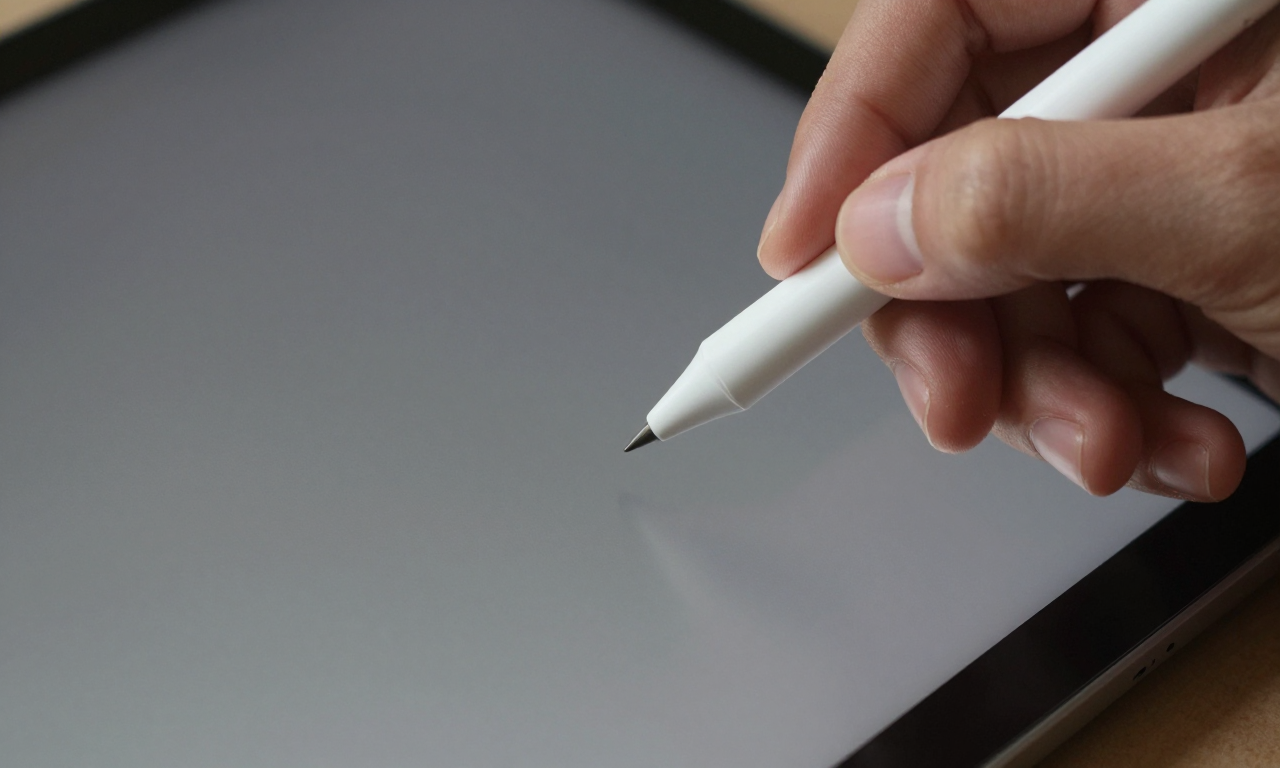
Handwriting feel is what makes a tablet go from meh to magic. The stylus tip, the screen texture, the software-it all adds up. Apple’s Pencil on an iPad? Smooth and precise. Samsung’s S Pen on Galaxy Tabs? Kind of soft and rubbery. Microsoft’s Surface Pen on PixelSense displays gives you natural friction. Latency under 20 milliseconds is barely noticeable. Pressure sensitivity levels vary, but honestly, most folks won’t need more than 4,096 levels.
Try before you buy if you can. Some stores have demo units. Notice how the stylus glides. Does it feel like a ballpoint on paper or a marker on glass? Your preference rules. A matte screen protector can turn a slick screen into a textured writing surface. But it might ding clarity a bit. Weigh the trade-offs based on what you do most.
App Compatibility
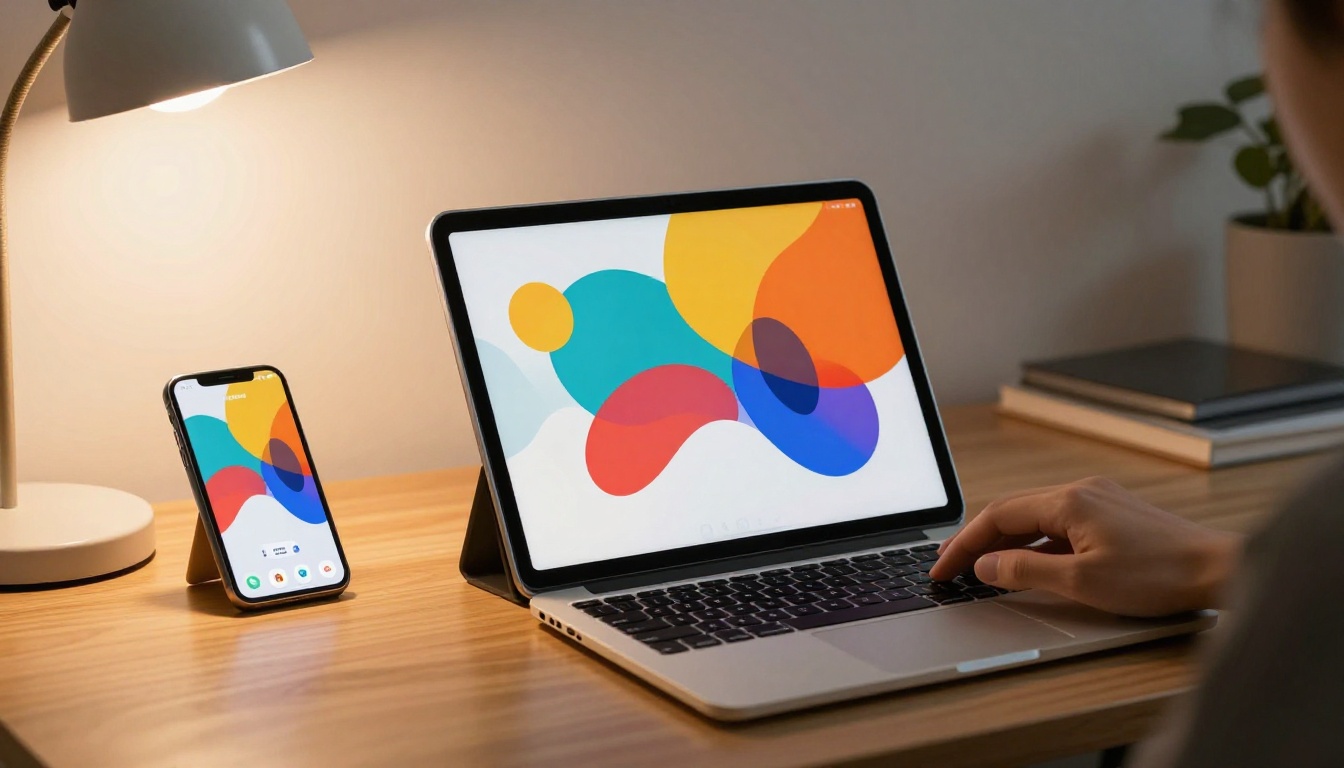
Your tablet’s only as good as its software. iPads run iPadOS with a ton of optimized apps. Android tablets give you flexibility but fewer tablet-specific options. Windows tablets run full desktop software, OneNote and Evernote included. Check if your must-have app is available and well-reviewed on the platform. Syncing across devices is a big deal for many. iCloud, Google Drive, OneDrive-each has its perks.
Handwriting-to-text conversion is a game-changer for finding stuff later. Apps like Nebo and Noteshelf nail this. Audio recording synced with notes helps in lectures. Some apps let you tap a word and hear what was said right then. Explore these features before you commit. They can seriously boost your productivity.
Battery and Screen
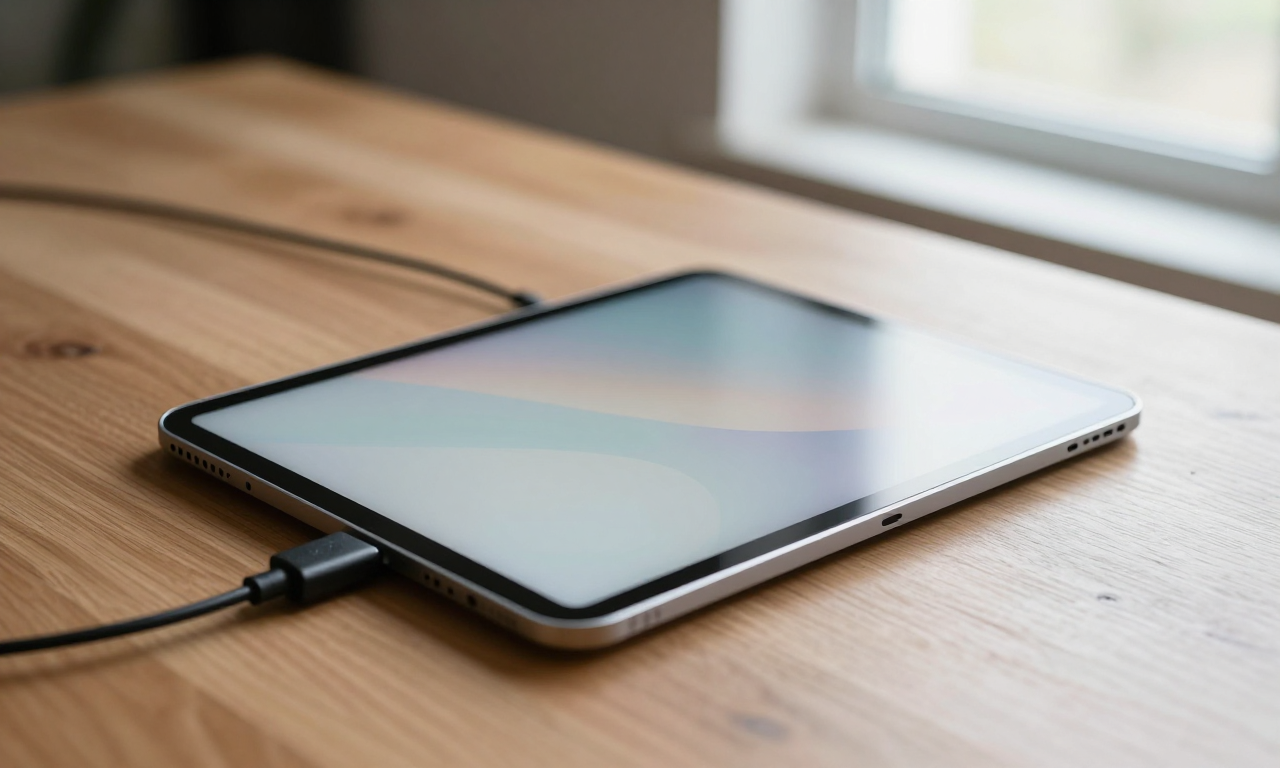
Battery life is all over the map with these tablets. iPads usually give you 10 hours of mixed use. Galaxy Tabs often match that, some hitting up to 14 hours. Surface tablets range from 8 to 15 hours depending on the model and how you use it. Look for tablets with at least 8 hours of real-world note-taking endurance. Fast charging can top you up during a quick break.
Screen tech affects both readability and battery drain. LCD screens are common in budget models and work fine indoors. OLED screens pop with better contrast and outdoor visibility but guzzle more power with white backgrounds. A high refresh rate, like 120Hz, makes writing feel snappier. It also kills the battery faster. It’s a balancing act between smoothness and longevity.
Think about where you usually work. Near windows or outside? Go for high brightness and anti-glare coatings. A laminated display shrinks the gap between glass and pixels, cutting parallax. That makes your writing look like it’s right under the pen tip. A small detail, but it matters for accuracy.
Making Your Choice
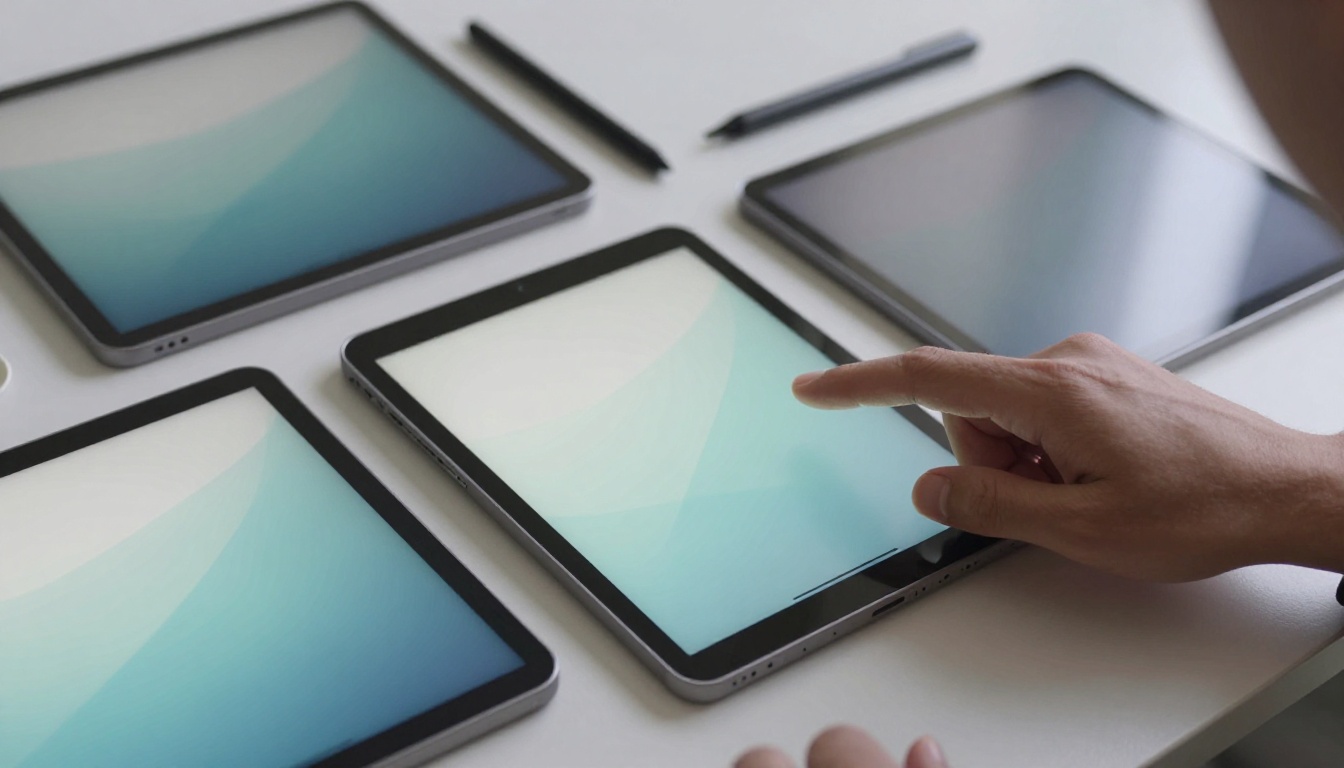
Start with your main use. Students need long battery life and solid annotation tools. Artists crave pressure sensitivity and creative app support. Professionals might want seamless integration with office suites. Your note-taking tablet should fit your ecosystem. Already on iPhone? An iPad makes sense. Android user? Galaxy Tab could be your jam. Windows loyalist? A Surface feels like home.
Budget is a big deal. Entry-level tablets handle basic note-taking just fine. Mid-range ones add better screens and faster chips. Flagship models bring premium build and fancy features. Don’t overbuy if you only need simple note-taking. A tablet that’s too powerful is overkill and drains your wallet.
Accessories count. A good case protects your investment and holds your stylus. Screen protectors save the display and can improve writing feel. External keyboards turn your tablet into a laptop replacement. Factor these into your total cost. Some bundles include the stylus, others sell it separately.
Finally, read user reviews focusing on long-term reliability. Look for common issues like battery wear or stylus tip wear. A tablet that lasts several years gives you better value. Warranty and customer support can save you headaches down the line. Pick a brand known for standing behind its stuff.
Your perfect note-taking tablet is out there. Focus on handwriting feel, app compatibility, battery life, and screen readability. Ignore the hype and marketing noise. A device that feels right in your hand and supports your workflow will serve you well for years. Happy note-taking!