Follow us on Facebook
Breaking updates in your feed — tap to open
Modern smartphones are crazy powerful. Yet we still hunt for a charger by 3 PM. Thing is, it’s not always a tired battery. Hidden settings and sneaky habits drain juice fast. This guide skips the obvious ‘dim your screen’ stuff. We’ll dig into tweaks that actually move the needle. You’ll tame background chaos, sort out connectivity, and dial in apps without killing what makes your phone smart. iPhone, Samsung Galaxy, Google Pixel-these steps work across the board. You’ll claw back hours of use, easy.
Display and Screen Settings
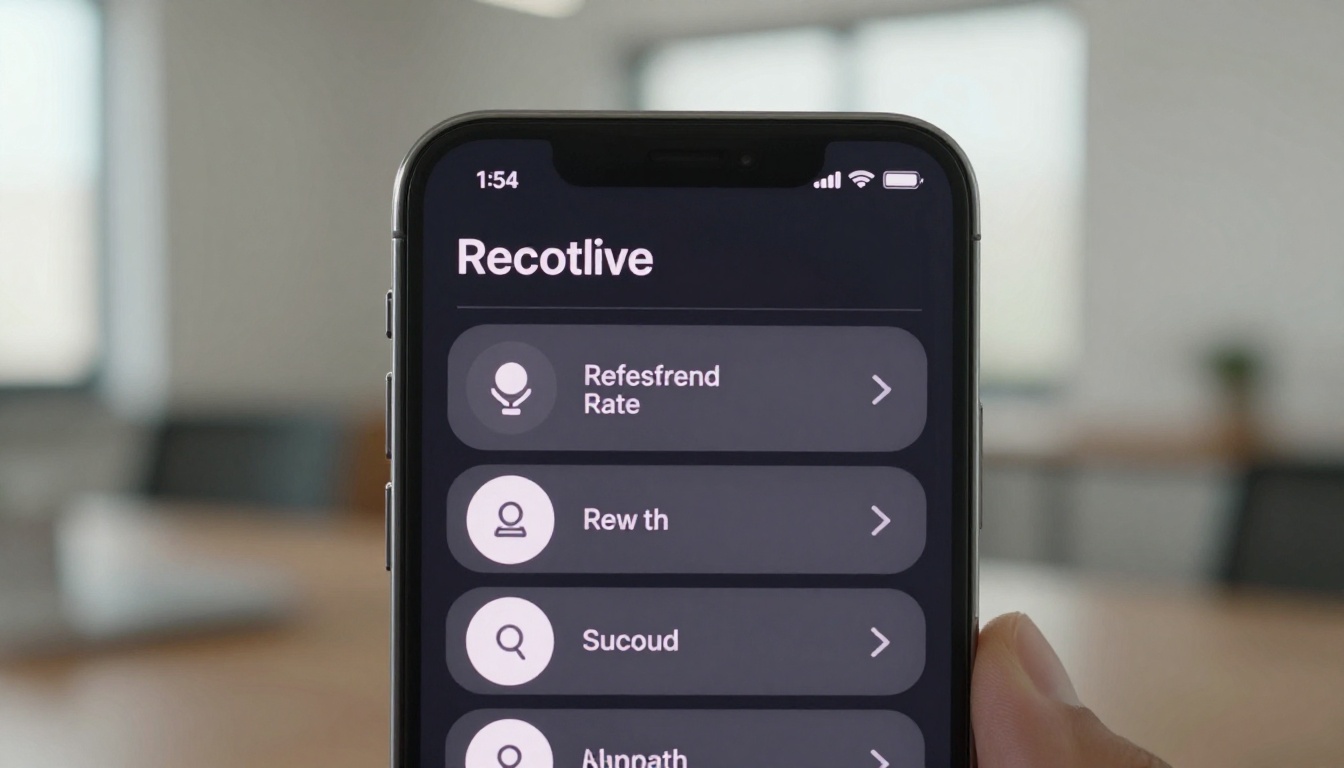
Your screen’s the biggest power hog. Sure, lower brightness helps. But the real wins? Adaptive refresh rates and dark mode. Flagship phones now shift from 1Hz to 120Hz on the fly. Locking at a high rate just burns battery. On Android, find ‘Smooth Display’ or ‘Motion Smoothness’ and set it to adaptive. iOS handles ProMotion automatically, but you can clamp it down in Accessibility if you’re desperate. Simple move, big payoff.
Dark mode isn’t just easy on the eyes. On OLED screens, it literally turns off pixels. Switch it on system-wide and in apps that support it. You’ll add hours of screen time over a day. Also, cut auto-lock to 30 seconds or a minute. Every extra second the display stays awake adds up. And disable ‘Raise to Wake’ if you trigger it by accident a lot. These tweaks balance what you see with what you save. Honestly, it’s a no-brainer.
Connectivity and Background Activity
Wi-Fi, Bluetooth, cellular-they’re always sniffing for signals. Even when idle, they sip power. Turning them off when not needed is obvious. But smarter tricks go deeper. Kill ‘Wi-Fi Scanning’ and ‘Bluetooth Scanning’ in location settings. They run even with radios off. On iOS, flip off ‘Ask to Join Networks’ to stop constant probing. And if 5G isn’t a must, drop to 4G. Those 5G modems are kind of ridiculous power suckers.
Background app refresh is a silent killer. Apps update content when you’re not looking, waking the processor and radios. Dive into settings and choke background activity for everything except the essentials-like messaging or email. Android’s ‘Adaptive Battery’ limits rarely used apps automatically. Location services need a hard look too. Set most apps to ‘While Using’ instead of ‘Always.’ For fitness trackers or nav, ask yourself if constant tracking is worth the drain. These moves keep you connected without the constant power bleed.
Battery health isn’t just about capacity-it’s about how efficiently your phone manages tasks. Small changes in settings can yield big gains in daily endurance.
App and System Optimizations
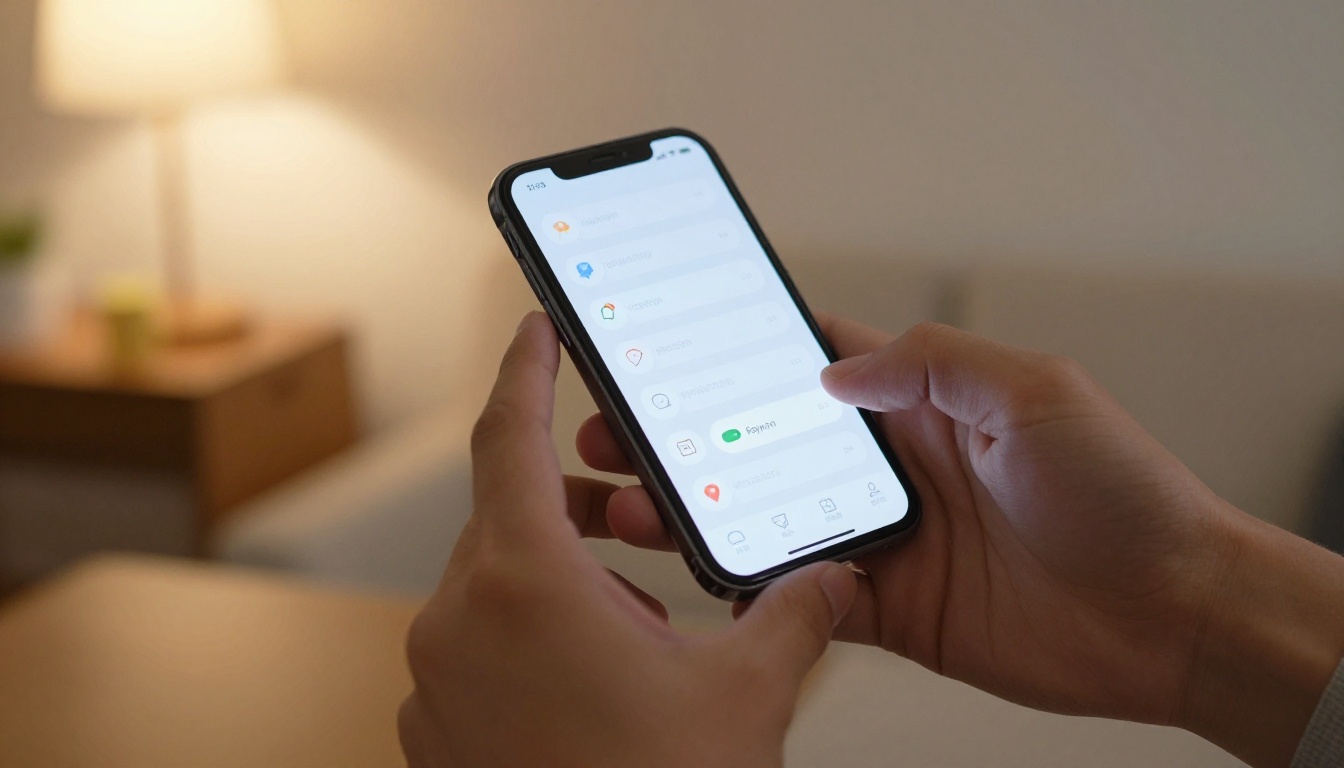
Notifications light up your screen, buzz your hand, and jolt the processor. Audit which apps can ping you and shut off the noise. On iOS, ‘Scheduled Summary’ batches alerts. Android’s ‘Notification Channels’ let you mute specific categories. Widgets seem handy, but they refresh in the background. Ditch the ones you barely glance at. Live wallpapers and animated lock screens? They’re extra cycles for no reason. Stick to a static image and call it a day.
System stuff like haptic feedback and keyboard sounds adds up too. Turn off key clicks and dial down haptic intensity if you can. Automatic downloads and updates spike power use. Set them to run only on Wi-Fi and while charging. On iPhones, kill ‘Background App Refresh’ for apps that don’t need it. On Android, flip on ‘Battery Saver’ before you hit 15%-be proactive. These tweaks streamline things without gutting what you actually need.
For the tinkerers, developer options give fine control. On Android, limit background processes to 4 or fewer. It stops apps from lingering in memory and wasting juice. But go easy-multitasking might take a hit. Check battery usage stats regularly to sniff out rogue apps. Sometimes a quick reinstall fixes weird drain. Look, a well-optimized phone can last a full day even with heavy use. And these settings are the secret sauce.
Charging Habits and Long-Term Care
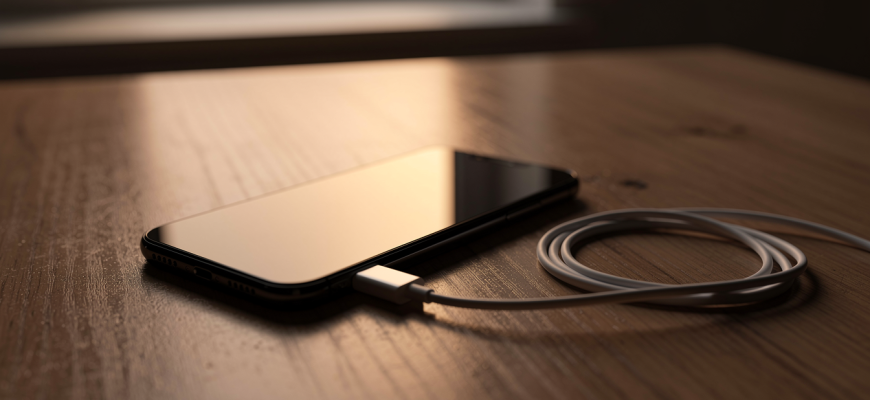
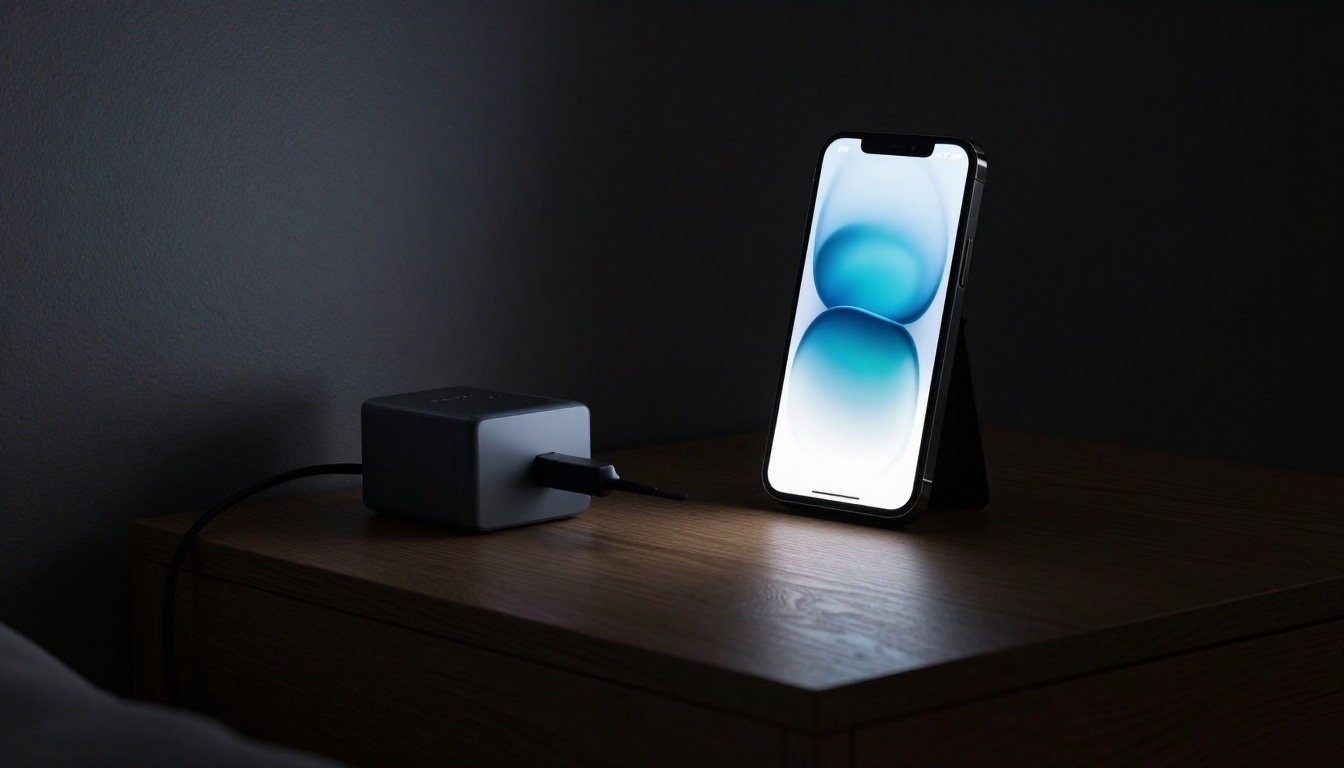
How you charge shapes both daily life and battery health over time. Don’t let your phone hit 0% all the time. Lithium-ion batteries prefer partial charges. Top up when it’s easy, and unplug before 100% if you can. Many phones now have optimized charging that learns your routine and holds at 80% until you need it. Turn that on to cut wear. Fast charging is super convenient, but it makes heat. Use it sparingly, and take off thick cases while charging to let warmth escape.
Wireless charging is effortless, sure. But it’s less efficient and kicks out more heat. Save it for overnight or desk duty where speed doesn’t matter. Grab a solid power bank for travel, but pick one with smart charging to avoid overvoltage. Heat is the enemy of battery longevity. So keep your phone out of blazing sun and hot cars. Pair smart settings with mindful charging, and you’ll stretch both daily runtime and overall lifespan. Your device stays reliable for years-pretty much a steal.