Follow us on Facebook
Breaking updates in your feed — tap to open
An iPad can do way more than just casual browsing. Set it up right, and it becomes a real laptop replacement. This guide shares iPad productivity tips that’ll change how you work. You’ll learn to navigate, organize, and create without the friction.
Master Multitasking Gestures
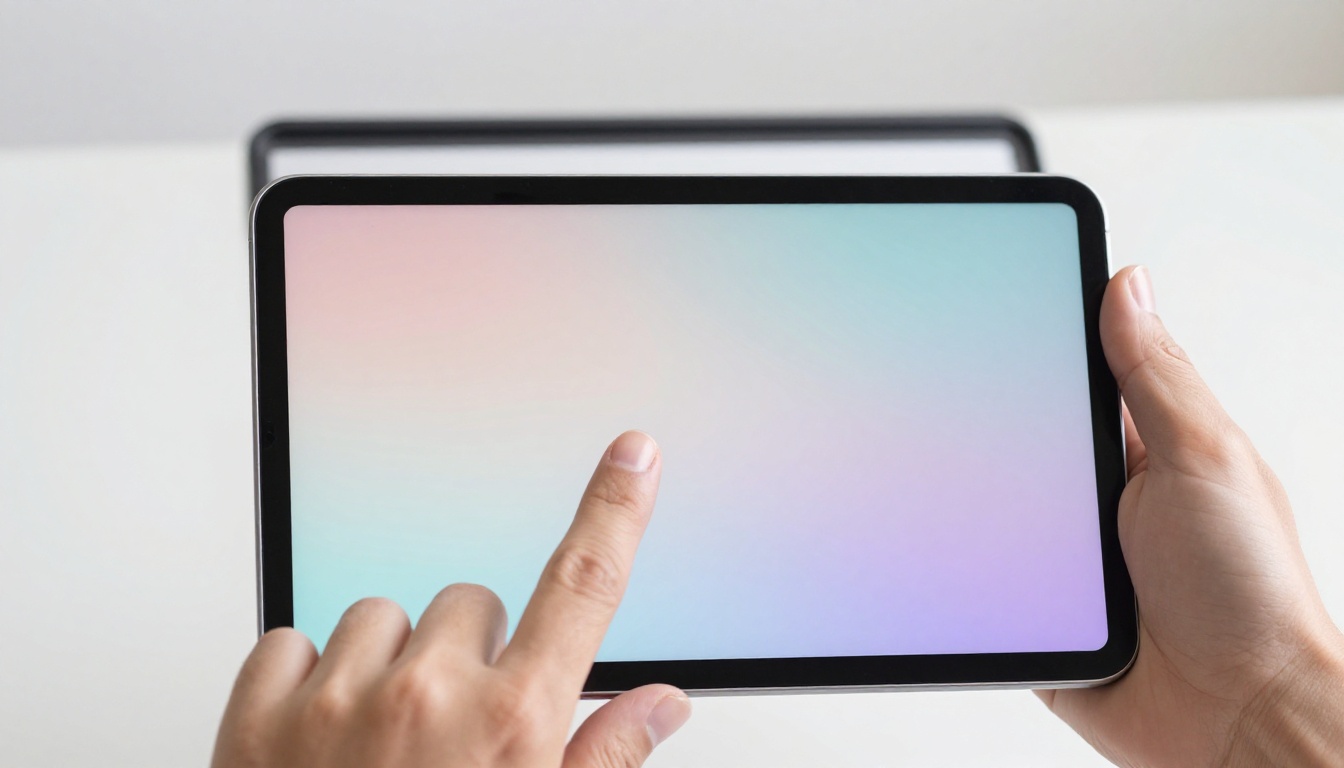
Multitasking is the core of iPad productivity. Swipe up from the bottom to see the Dock. Drag an app to the side for Split View. Slide Over lets a second app float on top. These gestures feel natural after a bit. They keep your workflow fluid and fast.
Use the app switcher to jump between spaces. Pinch with four fingers to go back to the Home Screen. Swipe left or right with four fingers to switch apps. It’s like having multiple monitors in one slim device. Combine these moves to handle research, writing, and communication without losing focus.
- Swipe up and hold for the app switcher.
- Drag an app from the Dock to create Split View.
- Use Slide Over for quick tasks like replying to messages.
- Pinch with four fingers to close an app.
Leverage Keyboard Shortcuts
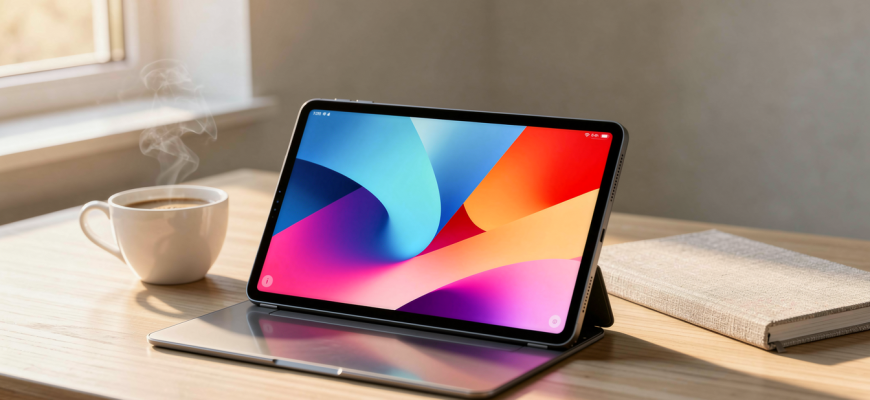
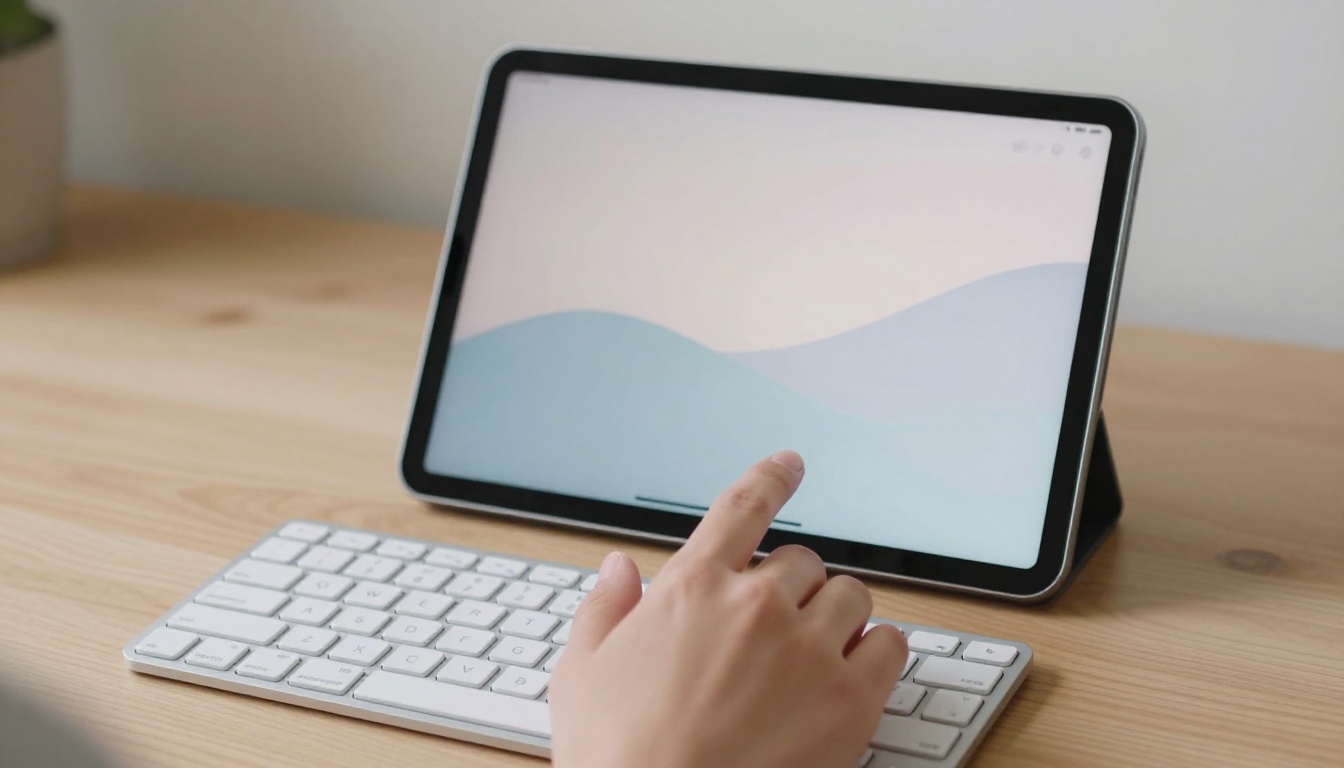
A physical keyboard turns the iPad into a typing beast. Pair a Bluetooth keyboard or use a Smart Keyboard Folio. Hold the Command key to see available shortcuts in any app. This simple trick reveals hidden efficiency.
Common shortcuts mirror the Mac. Press Command + Space for Spotlight search. Use Command + Tab to switch apps. In Safari, Command + T opens a new tab. Text editing becomes swift with Command + C, V, and Z. Memorizing even five shortcuts saves hours over time. Adjust key repeat rates in Settings to match your typing speed.
Beyond basics, many apps support custom shortcuts. Check the app’s menu bar for specific combos. For example, note-taking apps often use Command + N for a new note. Your fingers will fly once muscle memory kicks in. Practice daily to build speed.
Organize Files Effectively
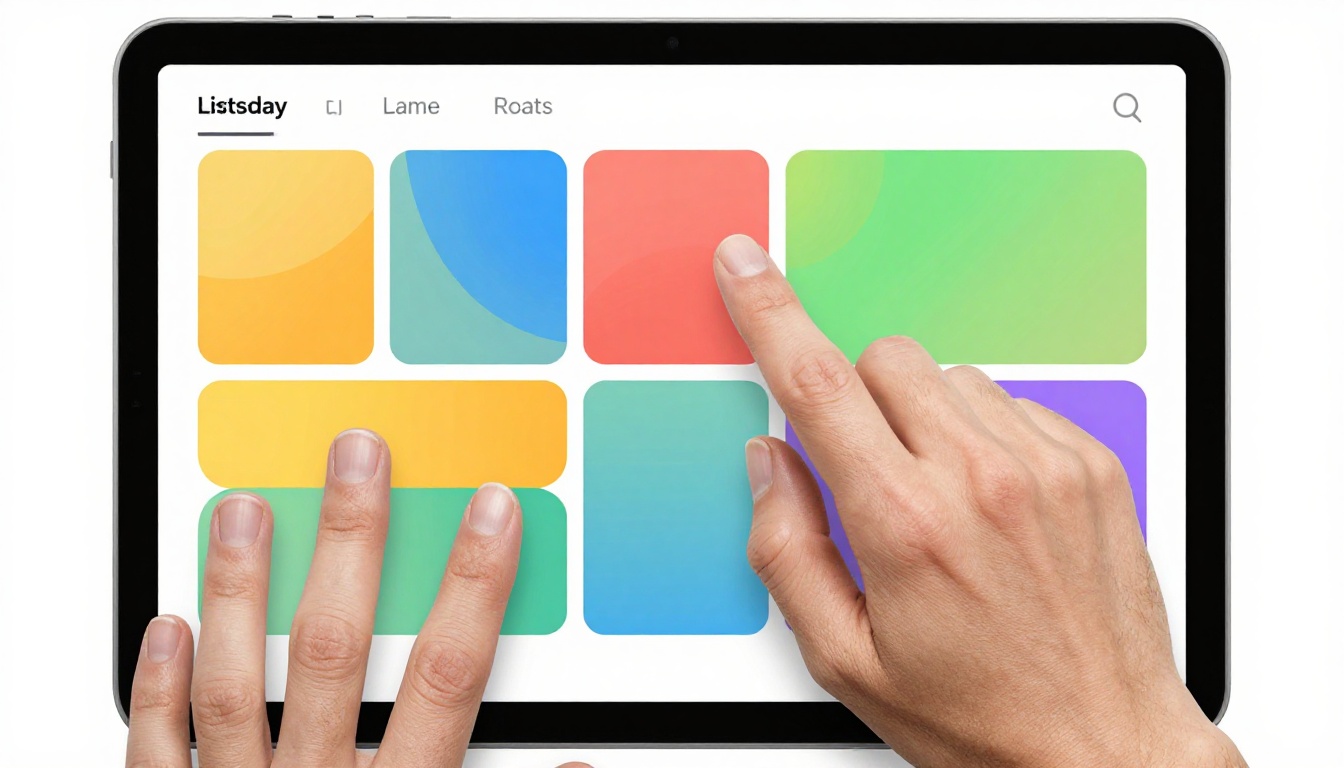
The Files app is the central hub for all your documents. It integrates iCloud Drive, third-party storage, and local files. Create folders for projects, clients, or semesters. Use tags to color-code important items. Drag and drop files between apps seamlessly.
Connect external drives via USB-C for extra storage. The Files app reads SD cards and USB sticks with an adapter. Batch rename files by selecting multiple items and choosing Rename from the context menu. This feature alone streamlines photo management and document archiving. Use the search bar to locate files instantly.
For advanced organization, consider using Shortcuts to automate file sorting. A simple automation can move screenshots to a dedicated folder. This reduces clutter and keeps your workspace tidy. Consistent naming conventions also help. Include dates or project codes in file names.
Treat the Files app as your digital filing cabinet. A structured system prevents overwhelm and saves mental energy.
Adopt Professional Apps
The App Store offers robust alternatives to desktop software. For writing, consider Ulysses or iA Writer. These apps provide distraction-free interfaces and Markdown support. For spreadsheets, Numbers and Google Sheets work well. Affinity Photo and Procreate cater to creatives.
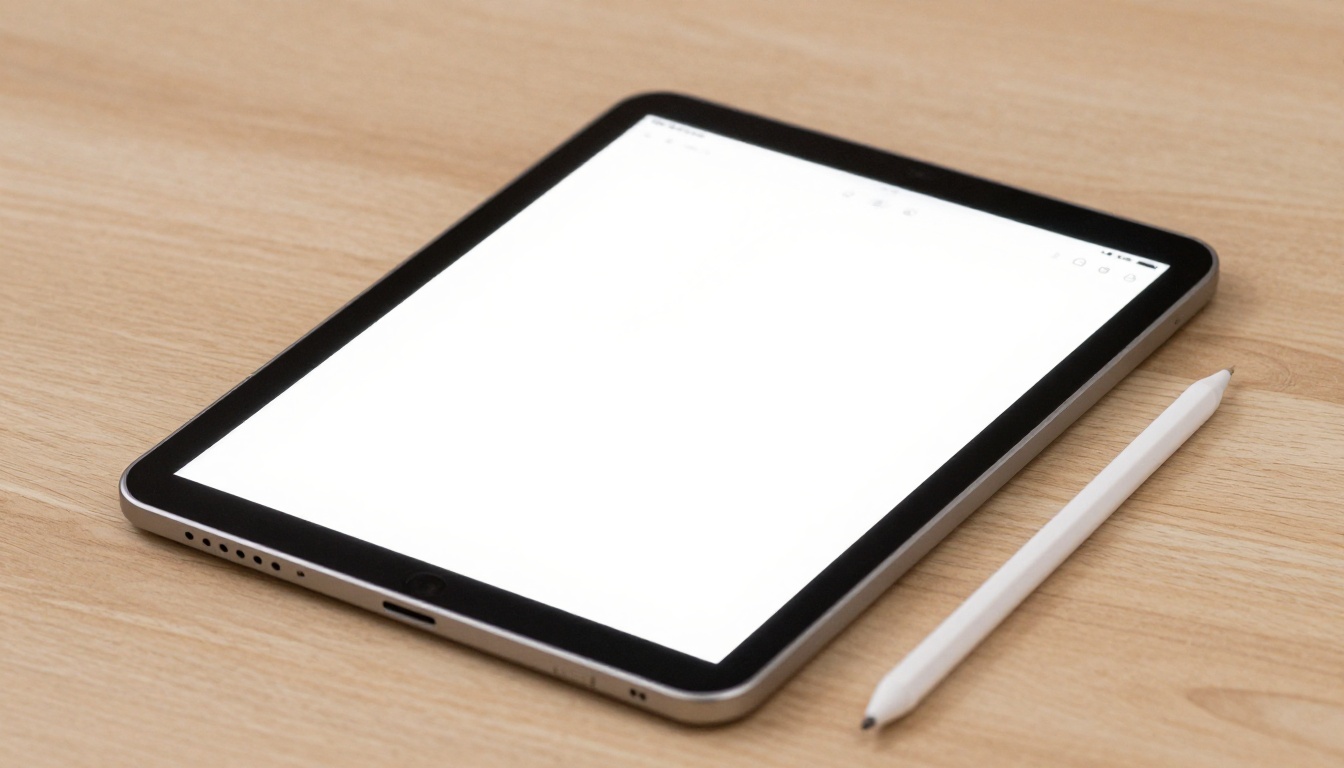
Project management tools like Trello and Asana have full-featured iPad versions. Notability and GoodNotes excel for handwritten notes and PDF annotation. These apps support the Apple Pencil for precise input. Many professionals rely on them for meeting notes and brainstorming.
Look for apps that support keyboard shortcuts and multitasking. Universal apps sync across iPhone and Mac. This ecosystem keeps your work accessible everywhere. Experiment with free trials before committing. The right app can replace several desktop programs.
Remember that web apps often work well in Safari. Google Docs, Canva, and Figma run smoothly. Pin your most-used sites to the Home Screen for quick access. This blurs the line between tablet and laptop even further.