Follow us on Facebook
Breaking updates in your feed — tap to open
You probably think a dying battery is what makes your phone crawl. It’s not. Not really. Your phone’s lifespan hinges on a bunch of stuff nobody talks about. Storage that slowly degrades. Screens that burn in. Ports clogged with pocket lint. Software that bloats over time. A real smartphone maintenance guide doesn’t stop at swapping batteries. It goes after these quiet killers. You can keep a flagship humming for six years, maybe more. Here’s how.
Storage Health
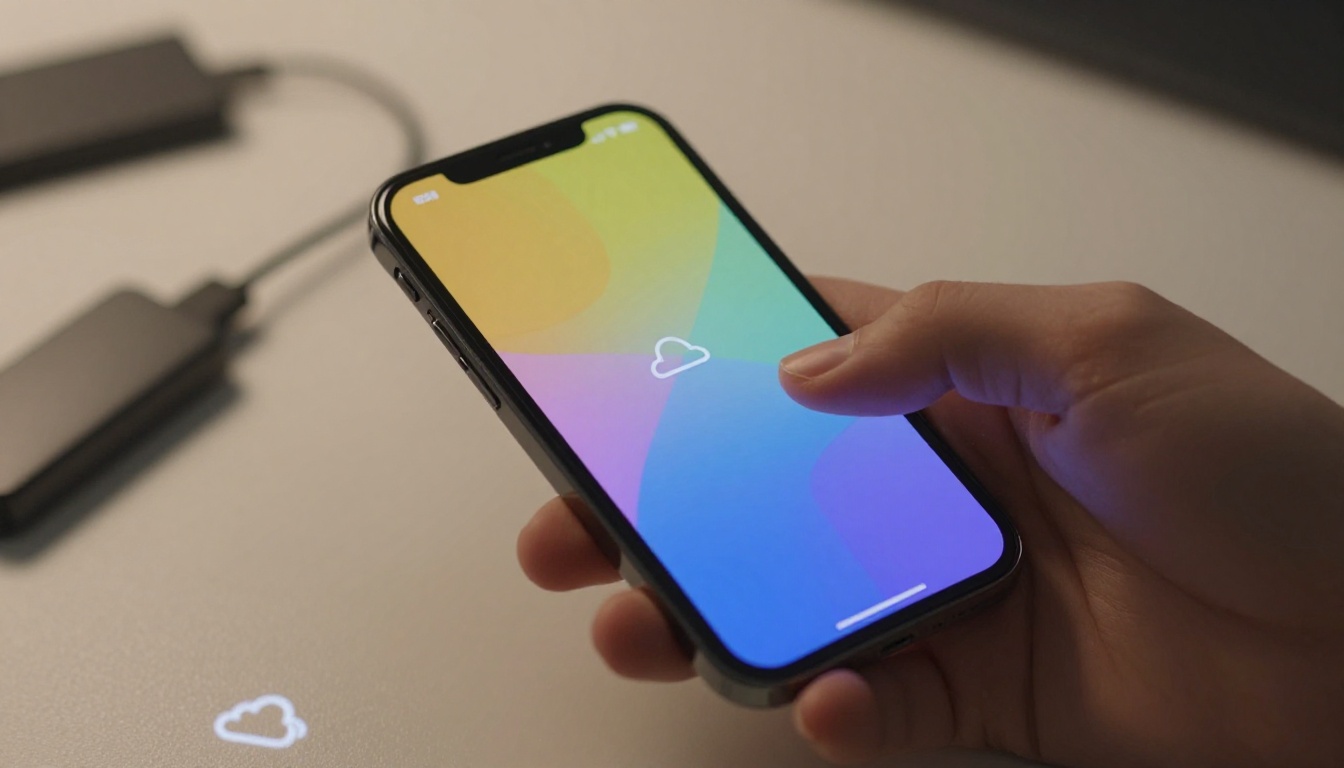
Flash storage doesn’t last forever. Every write cycle nibbles away at the memory cells. Fill it up near capacity and the system scrambles to find free blocks. That triggers a nasty feedback loop-excessive reads and writes. Speed plummets. Apps take forever to open. Saving a file feels like dial-up days. Keep at least 20% free. That’s the sweet spot for staying snappy. Offload photos and videos to the cloud or an external drive. Ditch apps you haven’t touched in months. Clear cached junk from social media and streaming apps. These habits are stupidly simple. They work.
Most folks ignore storage until a warning pops up. Don’t be that person. Get ahead of it. Use the built-in tools to hunt down big files and duplicates. Files by Google does this nicely on Android. iOS nudges you with similar tips in Settings. Think about a factory reset every couple of years. It wipes out accumulated cruft and gives you a clean slate. Just back up your stuff first. A fresh install can feel like a brand-new phone. Clean storage is kind of a superpower.
Screen Burn-in Prevention
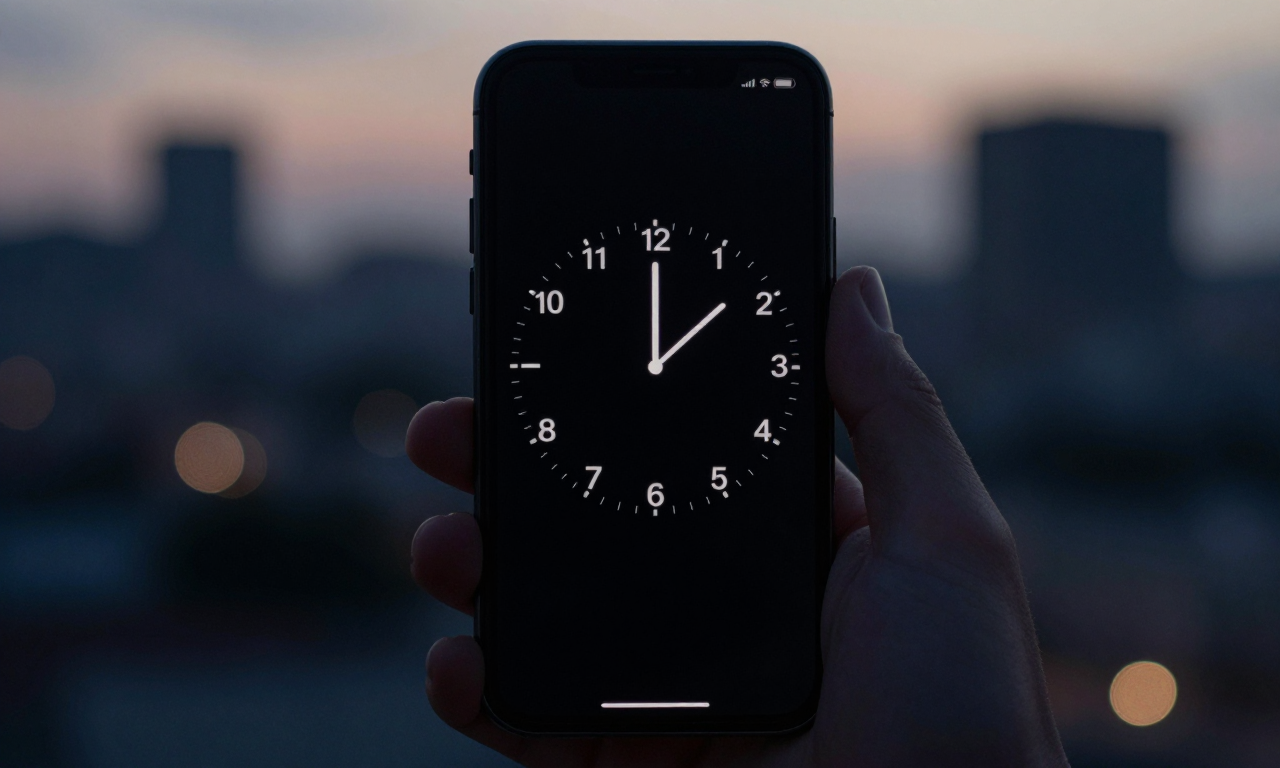
OLED screens are gorgeous. Those inky blacks and punchy colors? They come with a catch. Static stuff can leave ghostly afterimages. Navigation bars, status icons, always-on displays-they’re the usual suspects. Burn-in isn’t a flaw. It’s just uneven aging of the pixels. The organic compounds in OLEDs wear down. Blue sub-pixels go first. To slow this down, dial back your brightness. Cranking it up speeds up the decay. Use dark mode whenever you can. It’s easier on the pixels. Set your screen timeout to 30 seconds. Don’t let static images sit there for hours.
Mix up how you use the phone. Jump between apps. If you rely on GPS nav, flip the screen orientation now and then. Some launchers let you hide the status bar. Switch to gesture nav instead of on-screen buttons. That kills the static icons at the bottom. For always-on displays, pick a simple clock face. Shift its position if your phone lets you. These tiny tweaks can add years to your OLED. Repair techs will tell you prevention is way cheaper than a new screen.
An expert consensus: “Most burn-in cases we see are from users who keep brightness at 100% with static UI elements for hours daily. Simple habit changes prevent 90% of issues.”
Port Cleaning and Care
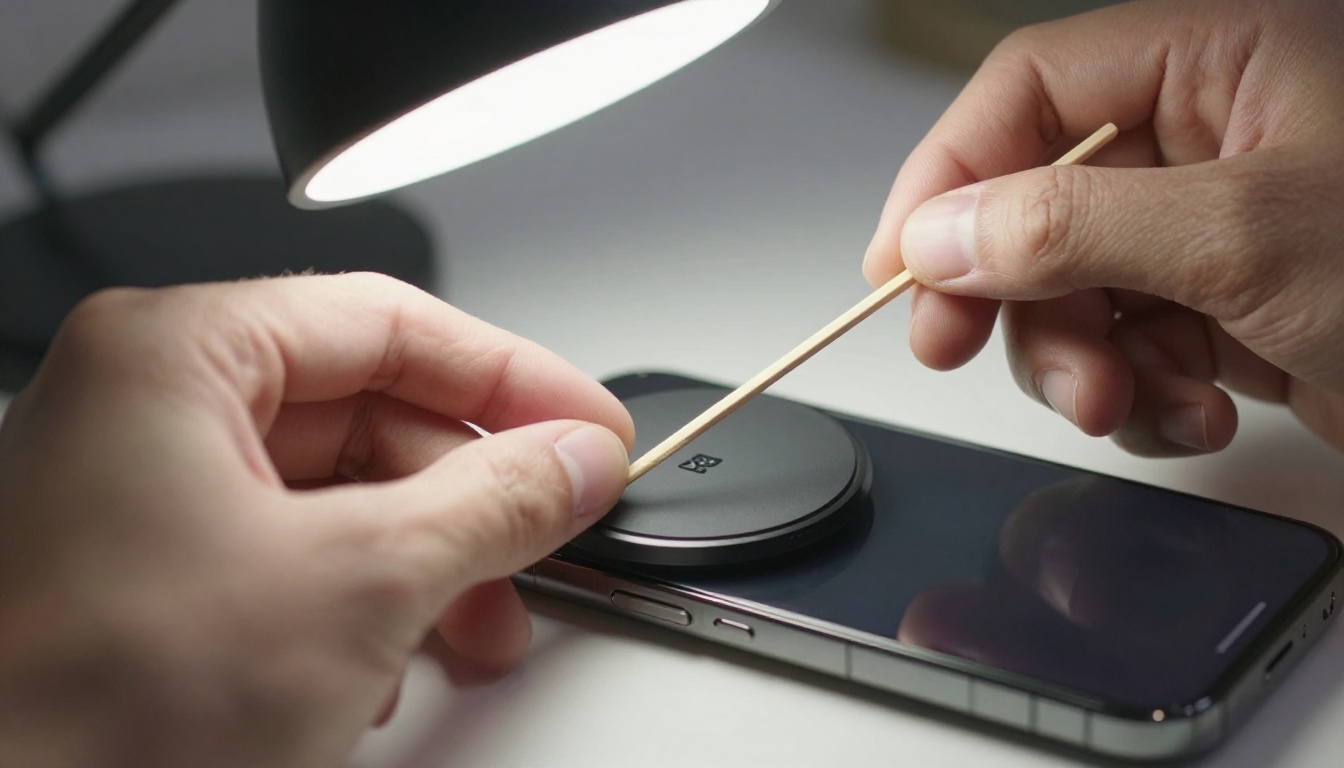
Charging ports are lint magnets. Dust, debris, pocket fuzz-it all packs in there. Over time, that gunk stops the charger from making good contact. You might blame the cable or the brick. Nope. It’s probably just a dirty port. Grab a wooden toothpick or a plastic pick. Something non-conductive. Gently scrape out the compacted lint. Don’t use metal. You could short the pins. Compressed air can help, but keep the can upright. You don’t want to blast moisture inside. Clean the port every few months. It’s a quick fix that brings back solid charging.
Moisture and corrosion are bigger headaches. If your phone gets wet, let the port dry completely before plugging anything in. Wireless charging is a smart workaround. It saves wear on the physical connector. For wired charging, use cables with snug, clean plugs. Check them for fraying or bent pins. A messed-up cable can damage the port. When you plug in, go straight. Don’t force it. These habits keep your port alive for the long haul.
Software Bloat Removal
Pre-installed apps and background processes are resource hogs. They chew up RAM, CPU, and battery. A lot of them you can’t uninstall. But you can disable them. On Android, head to Settings > Apps and disable anything you don’t use. Be careful with system stuff. On iOS, you can offload unused apps automatically. It removes the app but keeps its data. You can also clamp down on background activity for many apps. Turn off auto-start for messengers and social media.
System updates often bring performance boosts. Install them. They patch security holes and tune memory management. But big OS upgrades can bog down older hardware. If your phone is a few generations old, do some digging before you update. Sometimes a factory reset after a major update clears up lag. Ditch widgets and live wallpapers you don’t need. They refresh constantly and sip power. A lean, bloat-free system runs cooler and faster. That’s a big deal for longevity.
For DIY fixes, you need solid spare parts. Brands like iFixit, Injured Gadgets, and Mobile Defenders sell quality components. Batteries, screens, charging ports-they’re common swaps. Always check compatibility with your exact model. Watch teardown videos before you dive in. Use the right tools. A magnetic mat keeps screws from vanishing. Patience saves you from pricey mistakes. With the right approach, you can keep your device out of the trash and in your pocket for years.