Follow us on Facebook
Breaking updates in your feed — tap to open
Lots of Android phones now come with something called virtual RAM. You’ll see names like RAM Plus, Memory Extension, or Dynamic RAM Expansion. Makers say it’ll make multitasking smoother and your phone faster. But does it really work? Or is it just eating up storage and making things sluggish? Let’s skip the hype and get real.
Virtual RAM grabs a chunk of your phone’s storage and pretends it’s regular RAM. When the real RAM gets full, the system shoves less-used data into that storage space. Idea is, more apps stay ready in the background. Thing is, storage is way slower than RAM. All that swapping back and forth can cause lag. Whether it helps or hurts depends on how much real RAM you’ve got and how you use your phone.
Got a flagship with 12 GB of RAM or more? Virtual RAM barely does anything. The system just doesn’t need it. Turn it off and you get back several gigs of storage, no downside. But on a budget or midrange phone with only 4 GB of RAM, it’s a different story. Here, virtual RAM can actually help keep a few more apps hanging around. You’ll see fewer full reloads when you jump between social media, your browser, and a chat app.
Samsung calls it RAM Plus, and on many Galaxy devices it’s set to 4 GB by default. You can tweak or disable it in Settings under Device Care and Memory. Google Pixels handle memory their own way and don’t give you a toggle. Xiaomi’s Memory Extension often grabs 3 GB and you can switch it off in memory settings. OnePlus and Motorola have similar toggles, usually in About Phone or System settings.
Key principle: Virtual RAM is a tool for phones that are short on memory. On devices with plenty of real RAM, it’s often just wasted storage.
Storage speed is a bigger deal than you’d think. Phones with UFS 3.1 or UFS 4.0 storage handle swapping much better than old eMMC storage. If your phone has slower storage, virtual RAM can make things stuttery when it swaps data. Most modern flagships and midrangers use fast UFS storage, so it’s safer to leave on. Budget phones with eMMC might feel the pain more.
And there’s another catch: storage wear. Flash storage can only handle so many writes. Constant swapping writes and rewrites data to the same cells. Over many years, that could, in theory, shorten your storage’s life. Honestly, for most folks, the phone will be outdated long before that happens. Still, if you’re planning to keep your phone for four or five years, it’s worth a thought.
Gaming? It’s a mixed bag. Heavy 3D games need fast memory. Virtual RAM is too slow to help while you’re playing. If the system starts swapping mid-game, you might see frame drops. For casual games, you won’t notice a thing. If you’re a serious mobile gamer, you’re better off with more real RAM and virtual RAM switched off.
Battery life doesn’t change much. The CPU overhead from managing swap is tiny. The bigger drain might come from keeping more apps in memory, which can stop your phone from deep sleeping. But that’s nothing compared to screen brightness or cell signal. Don’t expect a huge battery boost from flipping this switch.

How virtual RAM works
Think of RAM as your desk and storage as a filing cabinet. Real RAM is the desk where you do your work. When the desk gets messy, virtual RAM is like a little side table. You move less-important papers there for a bit. It’s better than shoving everything back in the cabinet, but it’s slower than just having a bigger desk. Android often uses a compressed swap trick, which cuts down on how much data gets written to storage. That makes it more efficient than old-school swap on a PC.
The system picks what to swap based on how recently and how often you use an app. Apps you haven’t touched in hours get moved first. The goal is to keep your most-used apps in fast real RAM. When you switch back to a swapped app, the system reads it from storage and moves it back. That takes a split second but can feel like a tiny stutter. Over time, your phone might feel just a bit less fluid.
When to disable it
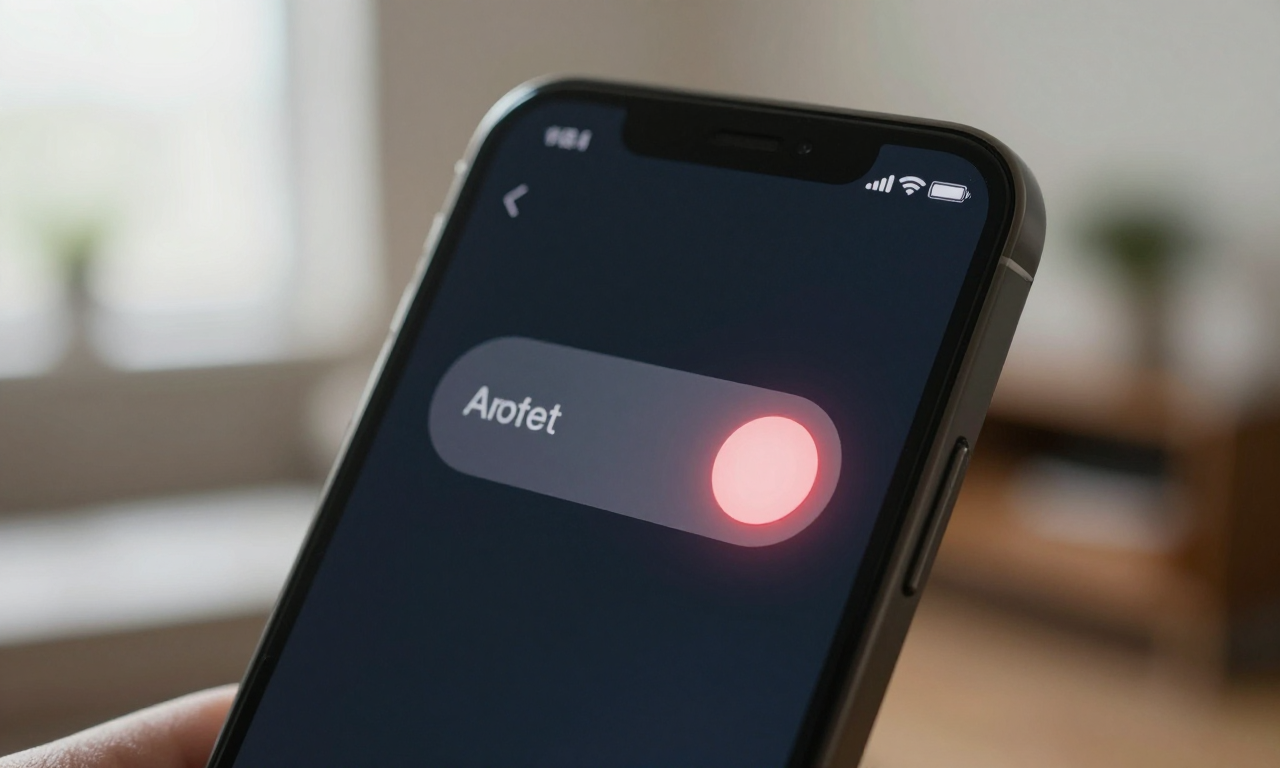
Turn off virtual RAM if your phone has 8 GB of real RAM or more. You won’t miss it. The storage you get back is more useful. Also kill it if you’re seeing weird stuttering or lag, especially when switching between heavy apps. Some folks say turning off RAM Plus on Samsung phones actually makes things smoother. If your phone uses eMMC storage, the performance hit probably isn’t worth the multitasking perk.
To check your storage type, grab a hardware info app from the Play Store. Look for UFS or eMMC in the storage details. If you see eMMC, switch virtual RAM off. If it’s UFS 2.2 or higher, it’s safer to keep on. Just remember, turning it off usually needs a reboot. The change kicks in after your phone restarts.
When to keep it on
Keep virtual RAM on if your phone has 4 GB of RAM or less. On those phones, the extra breathing room really helps. You’ll be able to keep a music app, maps, and a chat app open together without constant reloads. Phones with 6 GB of RAM are kind of in the middle. Try both settings for a day each. See which feels better for how you use your phone. There’s no one right answer for 6 GB devices.
Also leave it on if you’re a light user who doesn’t push your phone hard. If you mostly use a few apps and don’t game, the downsides are tiny. It won’t hurt, and it might help on the rare day you open a bunch of apps. For older phones that have gotten slow, virtual RAM can give a modest speed bump. It’s not magic, but it’s a free upgrade.
Real-world device guidance
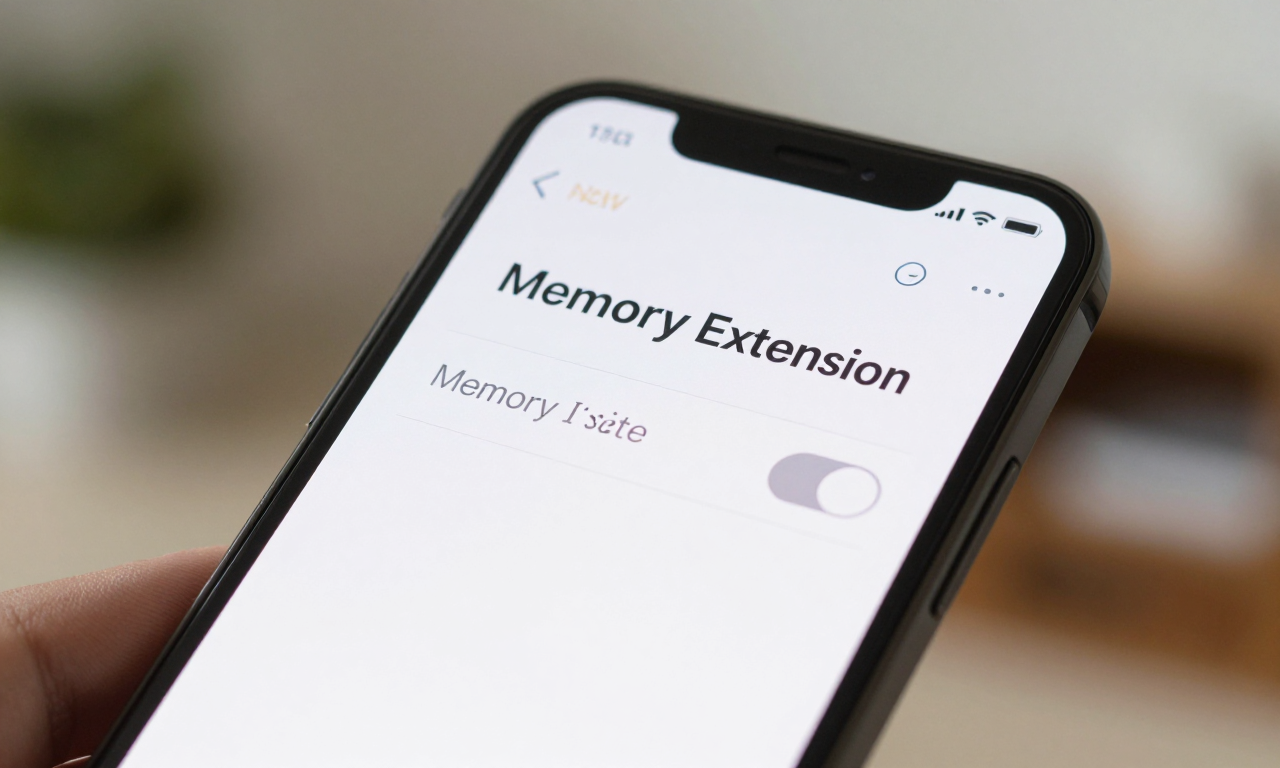
On Samsung Galaxy phones, go to Settings, then Battery and Device Care, then Memory. Tap RAM Plus to adjust or turn it off. You’ll need to restart. Pixel phones manage memory automatically and don’t have a toggle. You can’t manually switch virtual RAM on or off. Xiaomi, OnePlus, and Motorola phones usually have a toggle in Settings under About Phone or Additional Settings. Look for Memory Extension or something similar.
After you change the setting, use your phone normally for a day. Watch how apps act when you go back to them. Do they reload from scratch or pick up where you left off? Notice any stutters when you switch tasks. How it feels to you matters way more than benchmark numbers. If your phone feels better with virtual RAM off, leave it off. If you see more app reloads, turn it back on.
Virtual RAM isn’t a hidden performance killer or a must-have feature. It’s a tool for certain situations. Knowing your phone’s hardware and how you use it is the key to choosing right. Don’t let marketing buzzwords run your settings. Test it, pay attention, and decide for yourself.