Follow us on Facebook
Breaking updates in your feed — tap to open
If you’ve ever seen the dreaded “Storage Almost Full” notification on your iPhone, you know the panic that follows. The immediate thought is often to start deleting photos and videos-those precious memories you’ve carefully curated. But what if we told you there’s a better way? Through systematic digital maintenance, you can reclaim significant storage space without touching your personal media library. Based on real-world testing that recovered over 10GB of space, this guide will walk you through exactly how to identify and eliminate hidden digital clutter that’s secretly consuming your iPhone’s storage.
Storage issues on modern iPhones rarely stem from photos alone. Instead, they accumulate through months or years of temporary files, app caches, message attachments, and system data that most users never see. By targeting these hidden storage hogs, you can optimize your device’s performance while keeping every photo and video intact. Let’s explore the practical methods that actually work.
- Understanding iPhone Storage Categories
- Why Photos Aren’t Usually the Problem
- Method 1: Tackle System Data with a Forced Restart
- When to Use This Method
- Method 2: Clear App Caches and Storage
- Social Media Apps: TikTok, Instagram, Facebook
- Messaging Apps: WhatsApp, iMessage
- Method 3: Use Offload Unused Apps
- What Offloading Preserves
- What Gets Removed
- Method 4: Review Podcast and Music Downloads
- Smart Download Management
- Method 5: Audit Message Attachments and Duplicates
- Automatic Cleanup Settings
- Creating a Sustainable Storage Maintenance Routine
- When to Consider External Solutions
- Conclusion: Smart Storage Management Beats Drastic Deletions
Understanding iPhone Storage Categories
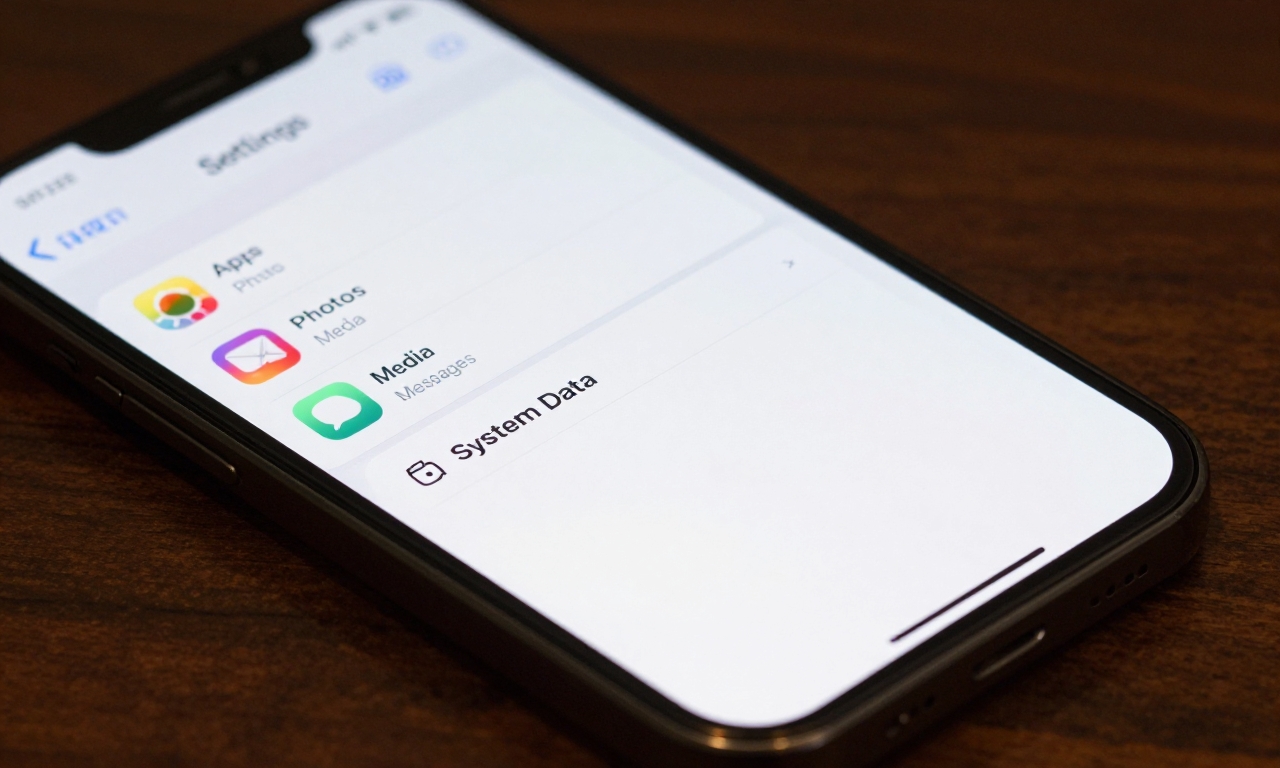
Before diving into cleanup methods, it’s essential to understand how iOS categorizes your storage. Navigate to Settings > General > iPhone Storage to see a detailed breakdown. You’ll typically find categories like Apps, Photos, Media, Messages, and the mysterious “System Data” or “Other.” This last category often becomes the primary culprit for unexplained storage consumption.
System Data includes temporary files, caches, logs, and other system resources that iOS manages automatically. While some of this is necessary for smooth operation, excessive accumulation can consume gigabytes of space. The key insight is that personal media-your photos and videos-are usually not the main problem. Instead, it’s the invisible digital debris that accumulates over time.
Why Photos Aren’t Usually the Problem
Modern iPhones optimize photo storage through features like iCloud Photos and optimized storage settings. Even with thousands of photos, your device manages this efficiently. The real storage thieves are often elsewhere: in messaging apps that automatically save media, social media caches that grow unchecked, and system files that never get cleared.
Method 1: Tackle System Data with a Forced Restart
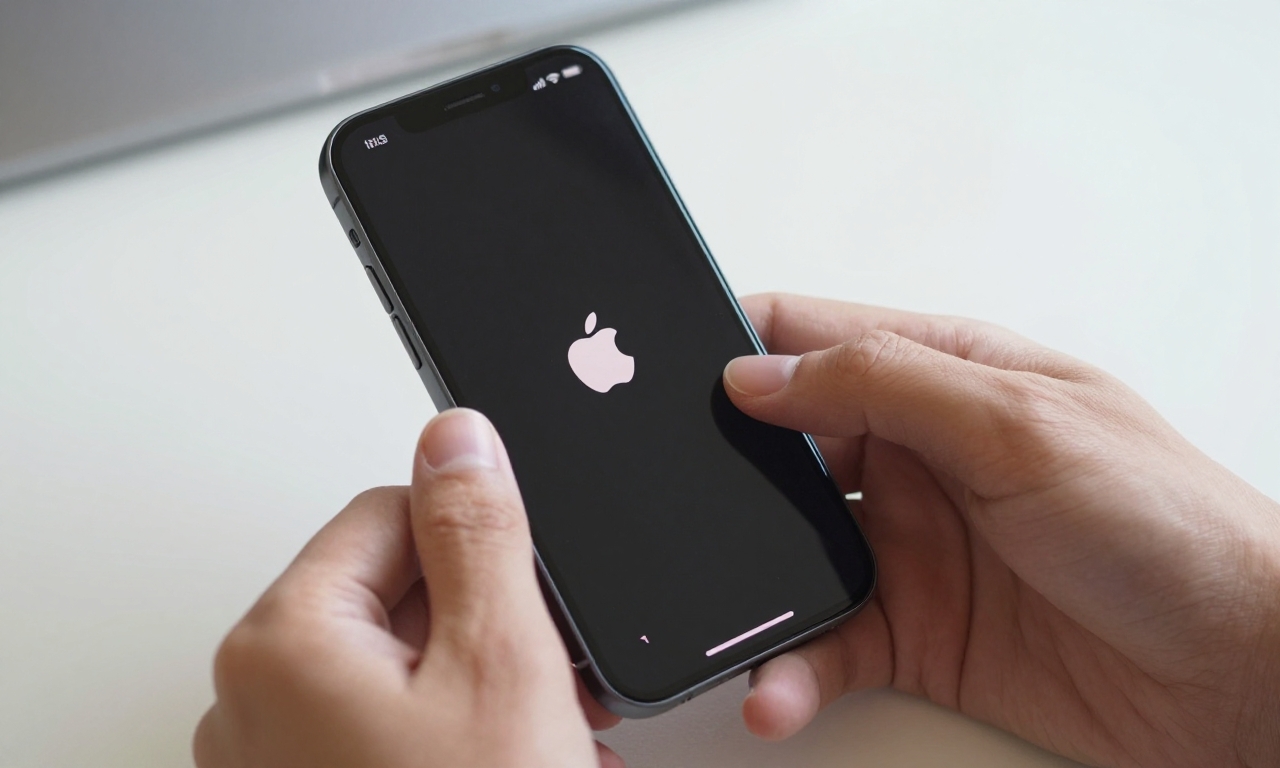
The “System Data” or “Other” category in your storage breakdown can sometimes balloon to alarming sizes-we’ve seen instances where it consumes 20GB or more. While iOS manages these files automatically, they don’t always get cleaned up properly. A forced restart often triggers iOS to clear temporary files and caches that have accumulated unnecessarily.
Here’s how to perform a forced restart on different iPhone models:
- iPhone 8 and later: Quickly press and release the Volume Up button, then the Volume Down button, then press and hold the Side button until the Apple logo appears.
- iPhone 7 and 7 Plus: Press and hold both the Volume Down and Side buttons until the Apple logo appears.
- iPhone 6s and earlier: Press and hold both the Home and Side (or Top) buttons until the Apple logo appears.
After restarting, wait a few minutes and check your storage again. Many users report seeing immediate reductions in System Data, sometimes freeing up several gigabytes. This works because the restart clears temporary files that apps and the system create during normal operation but sometimes fail to delete.
When to Use This Method
Consider performing a forced restart whenever you notice System Data growing beyond 5-10GB, or if you haven’t restarted your iPhone in several weeks. It’s a quick, non-destructive first step that often yields significant results without affecting your personal data.
Method 2: Clear App Caches and Storage
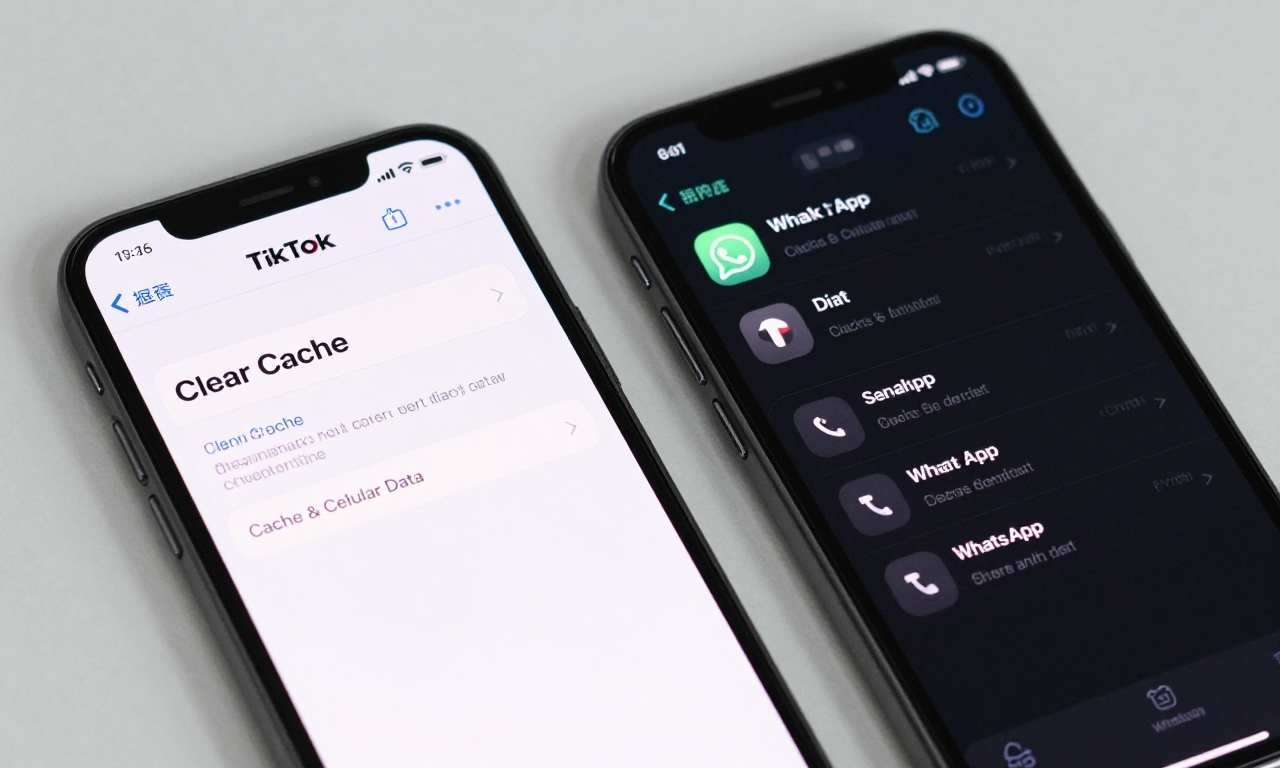
Social media and messaging apps are notorious for accumulating cache files. These temporary files speed up app performance but can grow to enormous sizes over time. Unlike on Android, iOS doesn’t provide a universal “Clear Cache” option, so you need to tackle apps individually.
Social Media Apps: TikTok, Instagram, Facebook
For TikTok, navigate to your profile, tap the three-line menu, select Settings and Privacy > Cache & Cellular Data > Clear Cache. This can free up multiple gigabytes if you use the app frequently.
Instagram offers similar options under Settings > Account > Data Usage > Clear Cache. Facebook’s cache clearing is found in Settings & Privacy > Settings > Media > Clear Cache.
Messaging Apps: WhatsApp, iMessage
WhatsApp is particularly storage-intensive due to automatic media downloads. Go to Settings > Storage and Data > Manage Storage to see a breakdown by chat. You can review and delete large files, old videos, and GIFs individually. Consider disabling Settings > Storage and Data > Media Auto-Download to prevent future accumulation.
For iMessage, check Settings > General > iPhone Storage > Messages. Here you can review large attachments and set auto-delete options for old messages. iOS can automatically remove attachments after 30 days or a year while keeping the message text.
| App | Cache Location | Typical Savings |
|---|---|---|
| TikTok | Settings > Cache & Cellular Data | 1-5GB |
| Settings > Storage and Data | 2-10GB | |
| Settings > Data Usage | 500MB-2GB | |
| Spotify | Settings > Storage | 1-3GB |
Method 3: Use Offload Unused Apps
iOS includes a clever feature called “Offload Unused Apps” that removes the app itself while preserving its documents and data. When you reinstall the app later, your information returns exactly as you left it. This is perfect for apps you use infrequently but don’t want to fully delete.
Enable this feature by going to Settings > General > iPhone Storage and tapping “Enable” next to Offload Unused Apps. iOS will automatically manage this for you, or you can manually offload individual apps by selecting them in the storage list and choosing “Offload App.”
“Offloading apps saved me over 8GB of space without losing any game progress or app settings. It’s like having your cake and eating it too-more storage without sacrificing functionality.” – iPhone user experience
What Offloading Preserves
- App documents and data
- Login information
- Settings and preferences
- Game progress and saves
What Gets Removed
- The app binary (the actual program)
- Temporary cache files
- Update files that are no longer needed

Method 4: Review Podcast and Music Downloads
Media apps like Apple Podcasts and Apple Music (or Spotify) can silently consume storage through downloaded content. If you subscribe to podcasts or download music for offline listening, these files remain on your device indefinitely unless manually removed.
In Apple Podcasts, go to Library > Downloaded to see all episodes stored on your device. Swipe left on any episode to remove it. For Apple Music, check Settings > General > iPhone Storage > Music to see downloaded songs and albums.
Consider your actual listening habits: Do you really need 50 podcast episodes downloaded when you only listen to 2-3 per day? Regular cleanup of completed episodes and music you no longer listen to can recover several gigabytes.
Smart Download Management
Instead of manually managing downloads, use smart settings:
- In Apple Podcasts, set episodes to auto-delete after playing
- Limit downloaded podcasts to only the most recent episodes
- Use streaming instead of downloading when on Wi-Fi
- Create smart playlists that automatically remove played content
Method 5: Audit Message Attachments and Duplicates
Group chats and frequent messaging can lead to massive accumulation of photos, videos, and documents. iOS provides tools to manage this effectively without deleting entire conversations.
Navigate to Settings > General > iPhone Storage > Messages. Here you’ll see categories like Photos, Videos, GIFs, and Stickers. Tap “Review Large Attachments” to see the biggest files first. You can selectively delete attachments while keeping the message text.
Automatic Cleanup Settings
Prevent future accumulation by adjusting these settings:
- Settings > Messages > Keep Messages: Set to 30 Days or 1 Year instead of Forever
- Settings > Messages > Expire: Set attachments to expire after 30 days
- Disable automatic saving of photos from messages to your camera roll
For duplicate photos that might have accumulated, use the Photos app’s “Duplicates” album (available in iOS 16 and later) to merge or delete identical images.
Creating a Sustainable Storage Maintenance Routine
One-time cleanup is helpful, but developing regular maintenance habits prevents storage issues from recurring. Here’s a simple monthly routine:
- First of each month: Check iPhone Storage breakdown
- Weekly: Clear caches in social media apps you use heavily
- After major trips/events: Review and delete unnecessary message attachments
- Quarterly: Perform forced restart to clear system data
- As needed: Offload apps you haven’t used in 30+ days
Enable storage optimization features in Settings > Photos > Optimize iPhone Storage to keep photo storage manageable. Also consider iCloud+ subscriptions if you consistently need more space-the 50GB plan is affordable and seamlessly integrates with your iPhone.
When to Consider External Solutions
If you’ve implemented all these methods and still need more space:
- iCloud Photos with optimized storage
- External lightning/USB-C storage devices
- Cloud services like Google Photos for backup
- Upgrading to a higher storage capacity iPhone next time
Conclusion: Smart Storage Management Beats Drastic Deletions
Freeing up iPhone storage doesn’t require sacrificing your photo memories. By targeting the real culprits-system data, app caches, message attachments, and unnecessary downloads-you can reclaim 10GB or more while keeping every precious photo and video. The methods outlined here work because they address how iOS actually uses storage, not just the visible symptoms.
Start with a forced restart to clear system data, then methodically work through app caches, offload unused apps, and review downloaded media. Establish a regular maintenance routine, and you’ll likely never see “Storage Almost Full” again. Your photos are safe-it’s the digital clutter that needs to go.
Remember: Storage optimization is an ongoing process, not a one-time fix. By incorporating these practices into your regular device maintenance, you ensure your iPhone continues performing optimally while preserving the digital memories that matter most.