Follow us on Facebook
Breaking updates in your feed — tap to open
If you’ve recently updated your iPhone to iOS 26, there’s a crucial security setting you need to check immediately. While Apple’s latest software brings exciting new features, it also introduces a potentially risky default configuration for wired accessories that could leave your device vulnerable to data theft. At Future Gatgets, we believe in keeping our readers informed about both the exciting innovations and the important safety considerations in the tech world.
This particular setting affects how your iPhone interacts with physical accessories connected via USB-C or Lightning ports. While wireless security threats often grab headlines, wired connections can be equally dangerous if not properly managed. The good news is that Apple has provided options to protect yourself-but there’s a catch that’s affecting many users right now.
In this comprehensive guide, we’ll walk you through everything you need to know about this critical security setting, why it matters for your iPhone’s safety, and what to do if you encounter issues making the recommended changes.
- Understanding the Wired Accessory Security Setting in iOS 26
- The Security Risks You Need to Know About
- Juice Jacking and Data Exfiltration Threats
- Why Wired Threats Deserve Your Attention
- How to Change Your iPhone’s Wired Accessory Settings
- The iOS 26 Bug Preventing Changes
- Interim Safety Measures While Waiting for Apple’s Fix
- Additional Security Best Practices
- What This Means for iPhone Security Moving Forward
Understanding the Wired Accessory Security Setting in iOS 26
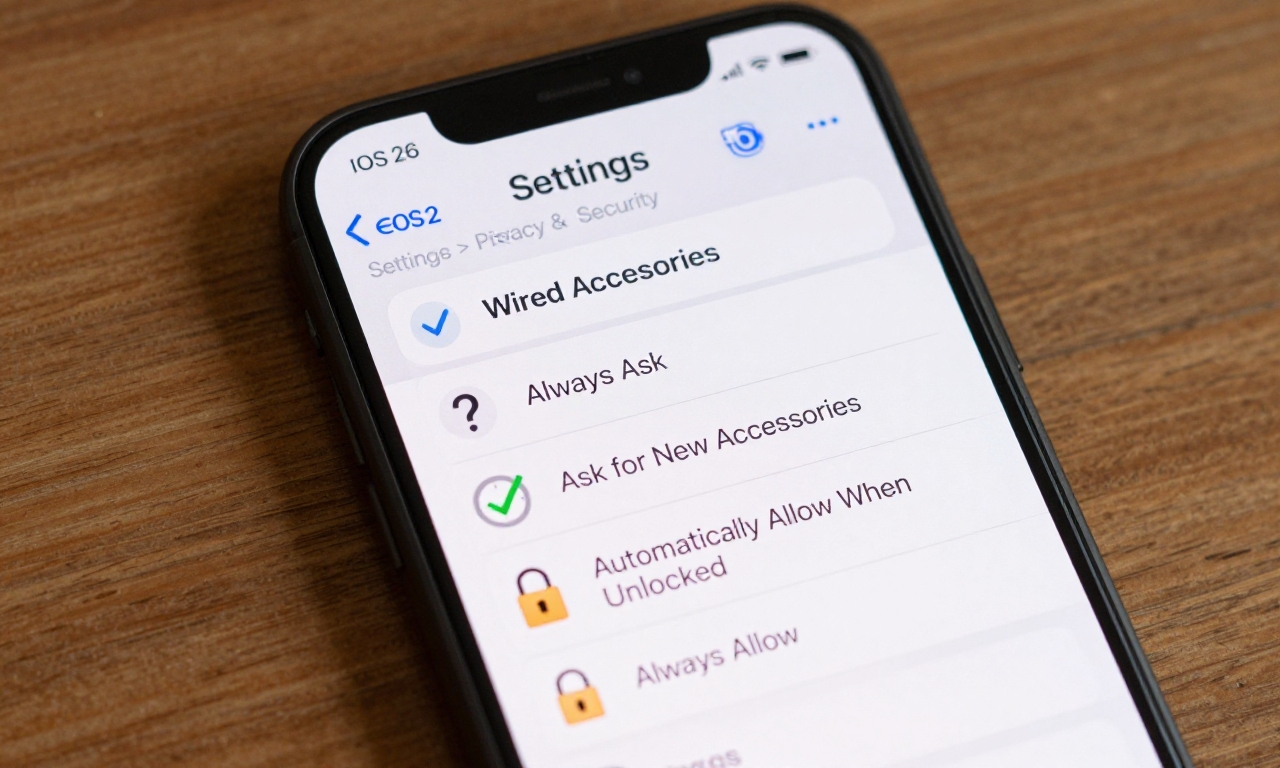
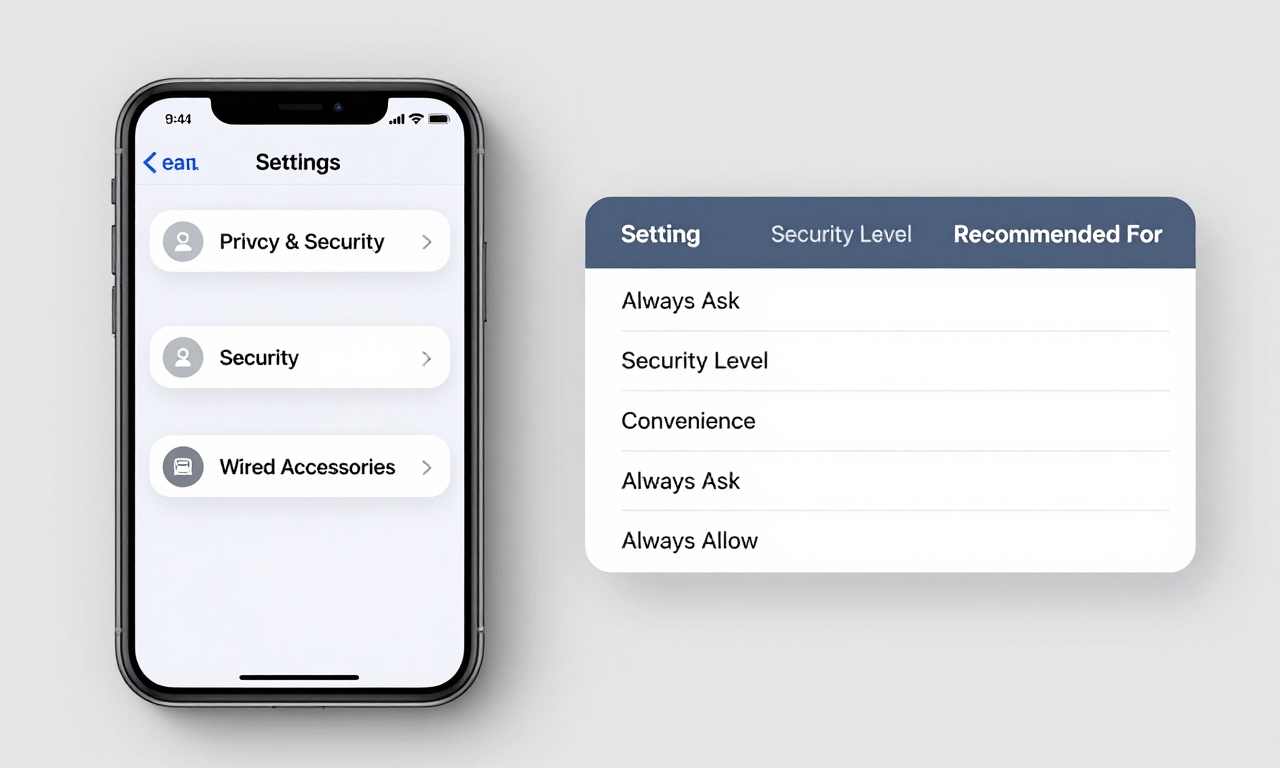
Apple has introduced a new security layer in iOS 26 specifically designed to protect your iPhone from potential threats through wired connections. You can find this setting by navigating to Settings > Privacy & Security > Security, where you’ll see the “Wired Accessories” options. This feature controls how your device responds when you connect physical accessories like charging cables, data transfer cables, or other USB-connected devices.
The setting offers three main options:
- Always Ask: Your iPhone will prompt you for permission every time you connect a wired accessory
- Ask for New Accessories: Your device will ask permission the first time you connect a specific accessory, then remember your choice for future connections
- Automatically Allow When Unlocked: Accessories are automatically trusted when your iPhone is unlocked
- Always Allow: Accessories are automatically trusted regardless of your phone’s lock status
Here’s where the concern arises: iOS 26 defaults to “Automatically Allow When Unlocked” for most users, with “Always Allow” as another available option. While these settings might seem convenient, they create potential security vulnerabilities that every iPhone owner should understand.
The Security Risks You Need to Know About
Juice Jacking and Data Exfiltration Threats
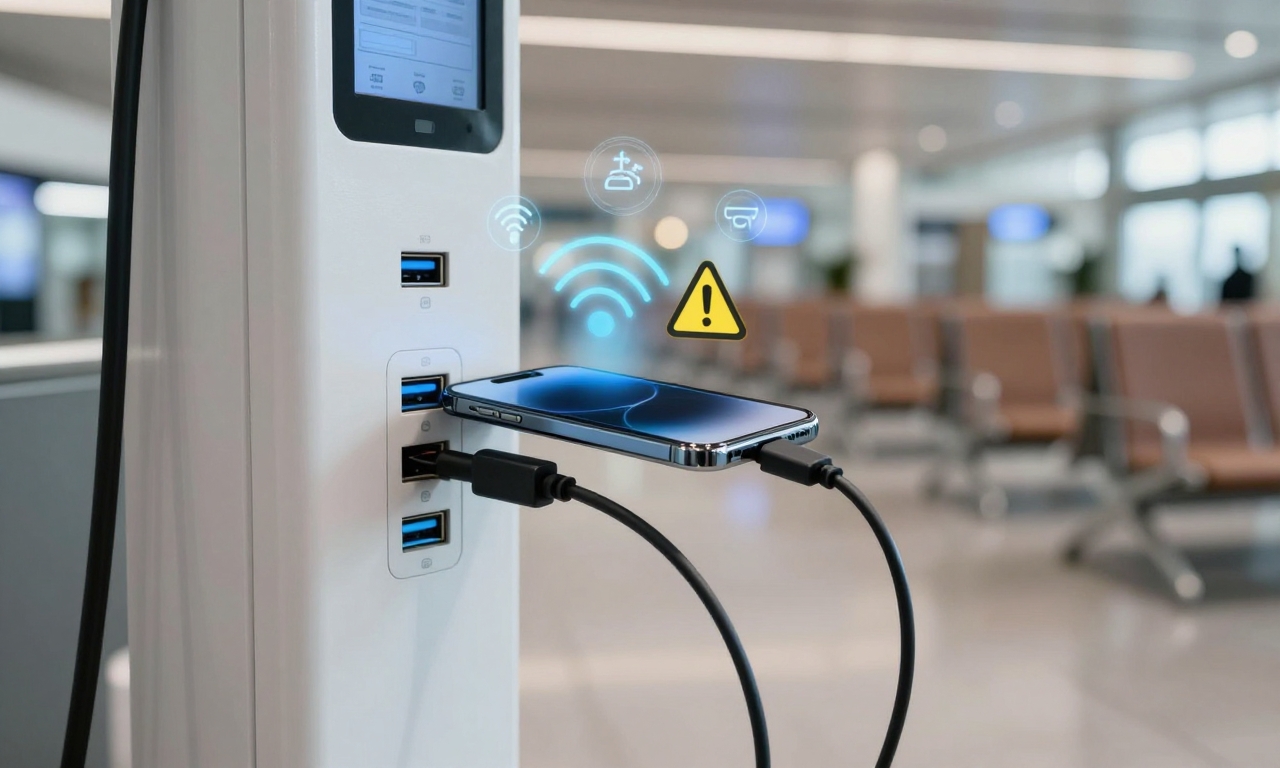
You might have heard about “juice jacking” attacks at public charging stations, but the risk extends beyond airport terminals and coffee shops. When your iPhone automatically trusts connected accessories, any malicious cable or charging station could potentially access your data or install malware without your knowledge.
Here’s what could happen with the default settings:
- Data theft: Malicious accessories could copy your photos, contacts, messages, or other sensitive information
- Malware installation: Harmful software could be installed on your device without your awareness
- Device control: In extreme cases, attackers could gain partial control over certain device functions
As security expert Michael Chen explains in our recent interview:
“The convenience of automatic accessory approval comes at a significant security cost. While Apple has robust security measures in place, automatically trusting physical connections creates an unnecessary vulnerability that users should address.”
Why Wired Threats Deserve Your Attention
While wireless security threats like Bluetooth hacking or Wi-Fi snooping receive more media attention, wired attacks remain a genuine concern for several reasons:
- Physical access advantage: Attackers with physical connection points have more direct access to your device
- User trust factor: People tend to trust physical cables and charging stations more than unknown wireless networks
- Detection difficulty: Wired attacks can be harder to detect than wireless intrusions
The transition to USB-C across Apple’s iPhone lineup, while beneficial for standardization, also means more users are connecting to a wider variety of accessories and charging sources, making this security consideration more important than ever.
How to Change Your iPhone’s Wired Accessory Settings
To maximize your iPhone’s security in iOS 26, we strongly recommend changing your wired accessory setting from the default. Here’s the step-by-step process:
- Open the Settings app on your iPhone
- Tap on Privacy & Security
- Select Security
- Find and tap on Wired Accessories
- Choose either Always Ask or Ask for New Accessories
We recommend “Always Ask” for maximum security, as it gives you complete control over every connection. However, “Ask for New Accessories” offers a good balance of security and convenience for accessories you use regularly.
Here’s a comparison of the security levels for each option:
| Setting | Security Level | Convenience | Recommended For |
|---|---|---|---|
| Always Ask | Highest | Lowest | Maximum security users |
| Ask for New Accessories | High | Medium | Most users |
| Automatically Allow When Unlocked | Medium | High | Temporary use only |
| Always Allow | Lowest | Highest | Not recommended |
The iOS 26 Bug Preventing Changes
Unfortunately, many iPhone users are reporting that they cannot change these settings due to a widespread bug in iOS 26. Reports indicate that:
- Security options appear greyed out and unselectable
- Only the insecure options (“Automatically Allow When Unlocked” and “Always Allow”) are available
- The issue particularly affects USB-C iPhone models
- Some users see the correct options but cannot select them
If you’re experiencing this issue, you’re not alone. Apple has acknowledged the problem and is reportedly working on a fix in upcoming updates like iOS 26.0.2 or 26.1. However, the exact timeline for these fixes remains unclear.
Interim Safety Measures While Waiting for Apple’s Fix
If you’re unable to change your wired accessory settings due to the iOS 26 bug, don’t panic. There are several practical steps you can take to protect your iPhone while waiting for Apple to release a fix:
- Select the safer default option: If you can access the settings at all, choose “Automatically Allow When Unlocked” over “Always Allow”
- Practice connection awareness: Be mindful of when your iPhone is unlocked and avoid connecting accessories during these times unless necessary
- Use trusted accessories only: Stick to Apple-certified cables and accessories from reputable brands
- Avoid public charging stations: When possible, use your own power bank or wait until you can access a trusted power source
- Keep your iPhone locked: When charging in public places, ensure your device is locked before connecting
Remember that while “Automatically Allow When Unlocked” isn’t ideal from a security perspective, it’s significantly safer than “Always Allow” because it at least requires your device to be unlocked before granting accessory access.
Additional Security Best Practices
Beyond addressing this specific setting, consider these general iPhone security practices:
- Regular updates: Install iOS updates promptly when they become available
- Two-factor authentication: Enable 2FA for your Apple ID and important accounts
- Strong passcodes: Use a complex passcode rather than a simple 4-digit PIN
- Find My iPhone: Keep this feature enabled for device tracking and remote wiping capabilities
What This Means for iPhone Security Moving Forward
This situation highlights an important aspect of modern smartphone security: the balance between convenience and protection. As Apple continues to enhance iOS security, users play a crucial role in implementing these protections through proper settings configuration.
The wired accessory security setting in iOS 26 represents Apple’s recognition of physical connection threats, even if the current implementation has some issues. Once the bug is resolved, this feature will provide valuable protection against a category of threats that often goes overlooked.
Looking ahead, we expect to see:
- More granular security controls: Future iOS versions may offer even more specific accessory permission settings
- Improved user education: Apple may provide clearer explanations of security settings and their implications
- Enhanced accessory verification: Potential for cryptographic verification of certified accessories
For now, the key takeaway is simple: Check your iPhone’s wired accessory settings in iOS 26, change them to “Always Ask” or “Ask for New Accessories” if possible, and follow our interim safety measures if you encounter the bug. Your iPhone’s security is worth these few minutes of attention.
Stay tuned to Future Gatgets for updates on when Apple releases the fix for this iOS 26 security setting bug. We’ll be among the first to test the update and confirm when users can properly secure their wired connections.