Follow us on Facebook
Breaking updates in your feed — tap to open
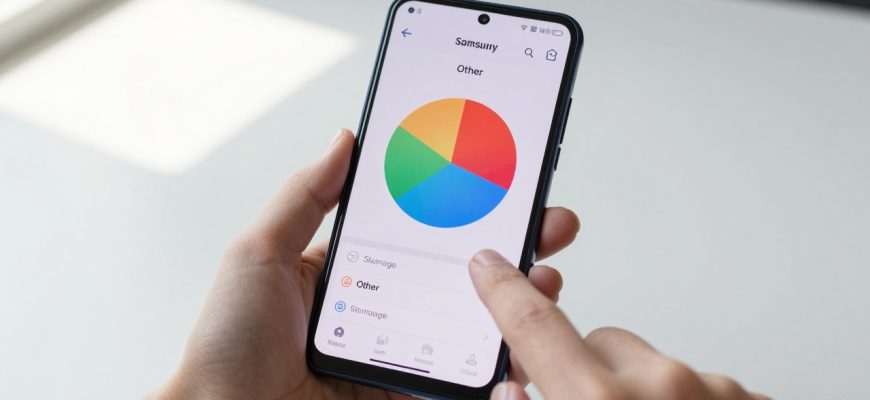
If you’ve ever checked your Samsung Galaxy phone’s storage settings and been puzzled by the mysterious ‘Other’ category consuming gigabytes of space, you’re not alone. This nebulous storage segment frustrates users across Samsung’s Android ecosystem, from budget A-series devices to premium Galaxy S and Z Fold models. Unlike clearly labeled categories like Photos, Videos, or Apps, ‘Other’ storage represents a digital catch-all that can silently expand, sometimes occupying 20-30% of your device’s total capacity.
At Future Gatgets, we’ve analyzed storage patterns across multiple Samsung devices and consulted with Android system experts to demystify this category. The truth is that ‘Other’ storage isn’t inherently dangerous or malicious-it’s simply the system’s way of categorizing files that don’t fit neatly into standard media or application classifications. However, when left unchecked, this miscellaneous data can significantly impact your phone’s performance, available storage for new apps and photos, and overall user experience.
This comprehensive guide will explain exactly what constitutes ‘Other’ storage on Samsung devices, why it accumulates, and most importantly, provide safe, effective methods to reclaim that valuable space without compromising your device’s functionality or personal data.
- What Exactly Is ‘Other’ Storage on Samsung Devices?
- The Hidden Components of ‘Other’ Storage
- Step-by-Step Guide to Clearing ‘Other’ Storage on Samsung Phones
- Method 1: Manual App Cache Clearing (Most Effective for Heavy Apps)
- Method 2: Samsung’s Built-In Device Care Tool
- Method 3: Managing Downloads and File System
- Advanced Cleanup Methods and Precautions
- Using Third-Party Cleaning Apps (With Caution)
- What NOT to Do When Clearing ‘Other’ Storage
- When ‘Other’ Storage Indicates Bigger Problems
- Preventative Maintenance and Best Practices
- Establish a Cleaning Schedule
- Smart Storage Habits
- Monitoring Your Storage Health
What Exactly Is ‘Other’ Storage on Samsung Devices?
When you navigate to Settings > Battery and device care > Storage on your Samsung phone, you’ll see a colorful breakdown of your storage usage. The ‘Other’ category (sometimes labeled as ‘System’ or ‘Miscellaneous’ depending on your Android version) encompasses all files that don’t belong to these primary classifications:
- Photos and videos (media files with standard extensions)
- Audio files (music, recordings, podcasts)
- Installed applications and their core data
- Downloaded documents (PDFs, Word files, etc.)
- Operating system files (which have their own separate category)
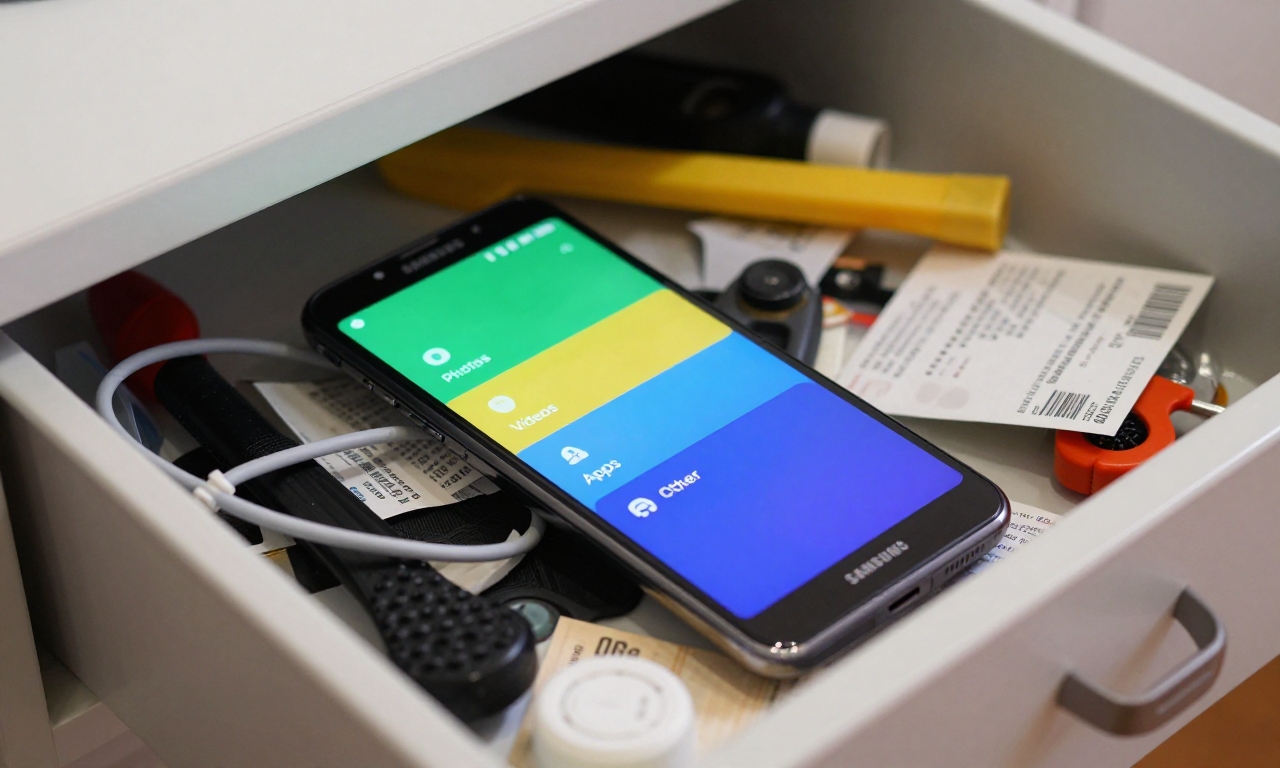
Think of ‘Other’ storage as your phone’s junk drawer-a place where various digital items accumulate because they don’t have a designated home in the main storage categories.
The Hidden Components of ‘Other’ Storage
Our technical analysis reveals that ‘Other’ storage typically contains these specific file types:
- Application Cache and Temporary Data: When you use apps like Chrome, Facebook, Instagram, or TikTok, they store temporary files to improve loading times. Over weeks or months, this cache can grow to several gigabytes without providing ongoing benefit.
- Residual Files from Uninstalled Apps: Surprisingly, when you uninstall applications, they don’t always remove all associated data. Configuration files, login tokens, and user preferences often remain behind.
- System Logs and Diagnostics: Android and Samsung’s One UI collect diagnostic data about system performance, app crashes, and usage patterns. While useful for troubleshooting, these logs accumulate continuously.
- Corrupted or Incomplete Files: Interrupted downloads, improperly transferred files, and data corruption during app updates can leave behind unusable fragments that still occupy space.
- Non-Media Downloads: APK files (Android application packages), compressed archives (ZIP, RAR), and other downloads that aren’t recognized as standard media or documents.
- Third-Party App Data: Messaging apps like WhatsApp and Telegram store media, backups, and databases in non-standard locations. Games often have large asset files that don’t classify as standard app data.
“The ‘Other’ storage category represents one of Android’s most misunderstood but manageable aspects. With proper understanding and regular maintenance, users can typically recover 5-15GB of space on devices that have been in use for 6+ months.” – Android System Analyst
Step-by-Step Guide to Clearing ‘Other’ Storage on Samsung Phones
Before attempting any cleanup, always ensure you have recent backups of important data. While the methods below are generally safe, having a backup provides insurance against accidental data loss.
Method 1: Manual App Cache Clearing (Most Effective for Heavy Apps)
Application cache represents the largest contributor to ‘Other’ storage for most users. Follow these steps to clear cache for specific applications:
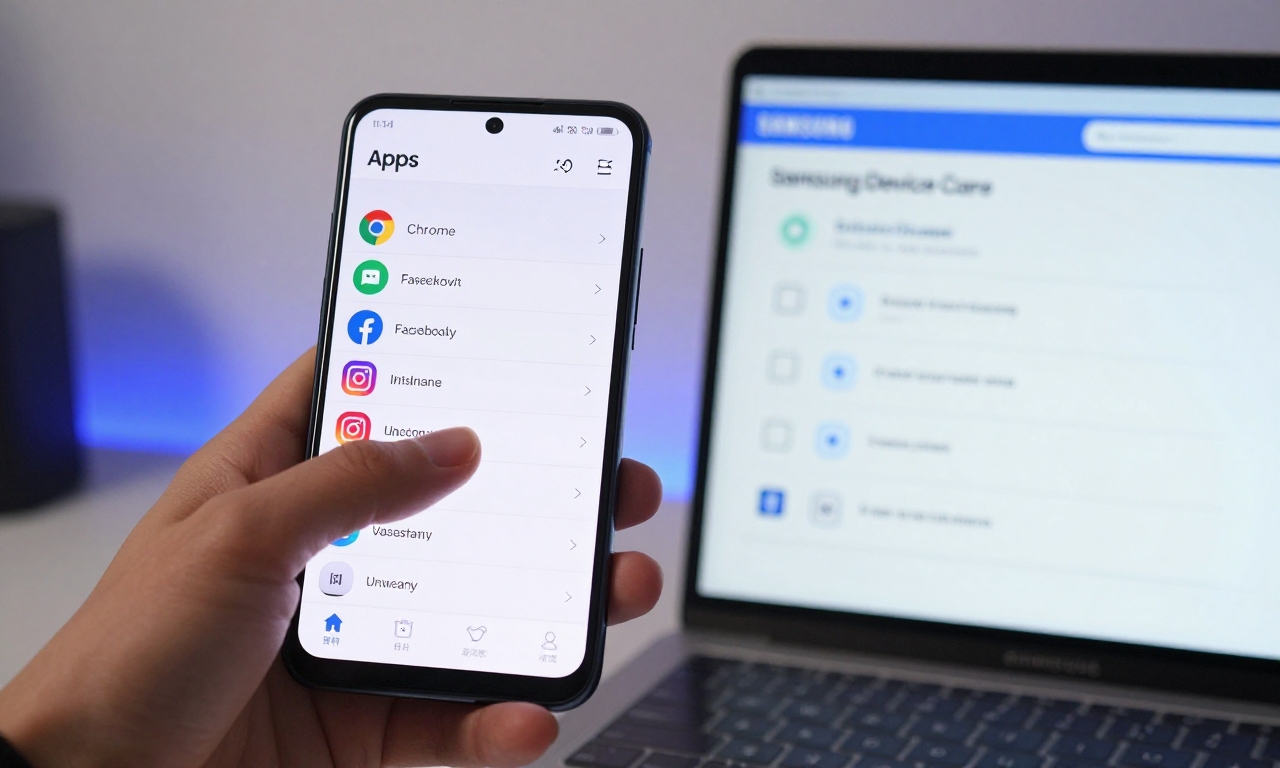
- Open Settings > Apps
- Select the app you want to clean (prioritize browsers, social media, and games)
- Tap Storage
- Select Clear Cache (NOT Clear Data, which would delete your login information and preferences)
Priority Applications: Chrome (can accumulate 2-5GB), Facebook (1-3GB), Instagram (1-2GB), TikTok (1-3GB), Spotify (500MB-2GB), and any games you frequently play.
Method 2: Samsung’s Built-In Device Care Tool
Samsung’s Device Care feature provides automated cleanup specifically designed for Galaxy devices:
- Navigate to Settings > Battery and device care
- Tap Storage then select Clean now
- The system will analyze and suggest files for removal, including:
- Temporary app files
- Clipboard data
- Unused diagnostics
- Old log files
- Review the suggestions and confirm deletion
This method is particularly safe as Samsung’s algorithms are designed to avoid deleting important system or personal files.
Method 3: Managing Downloads and File System
The My Files app (preinstalled on all Samsung devices) provides granular control over your storage:
| Location | What to Look For | Safety Level |
|---|---|---|
| Downloads folder | Old APK files, completed documents, temporary downloads | High (user can easily identify files) |
| WhatsApp folders | Media backups, sent files, database backups | Medium (review before deleting) |
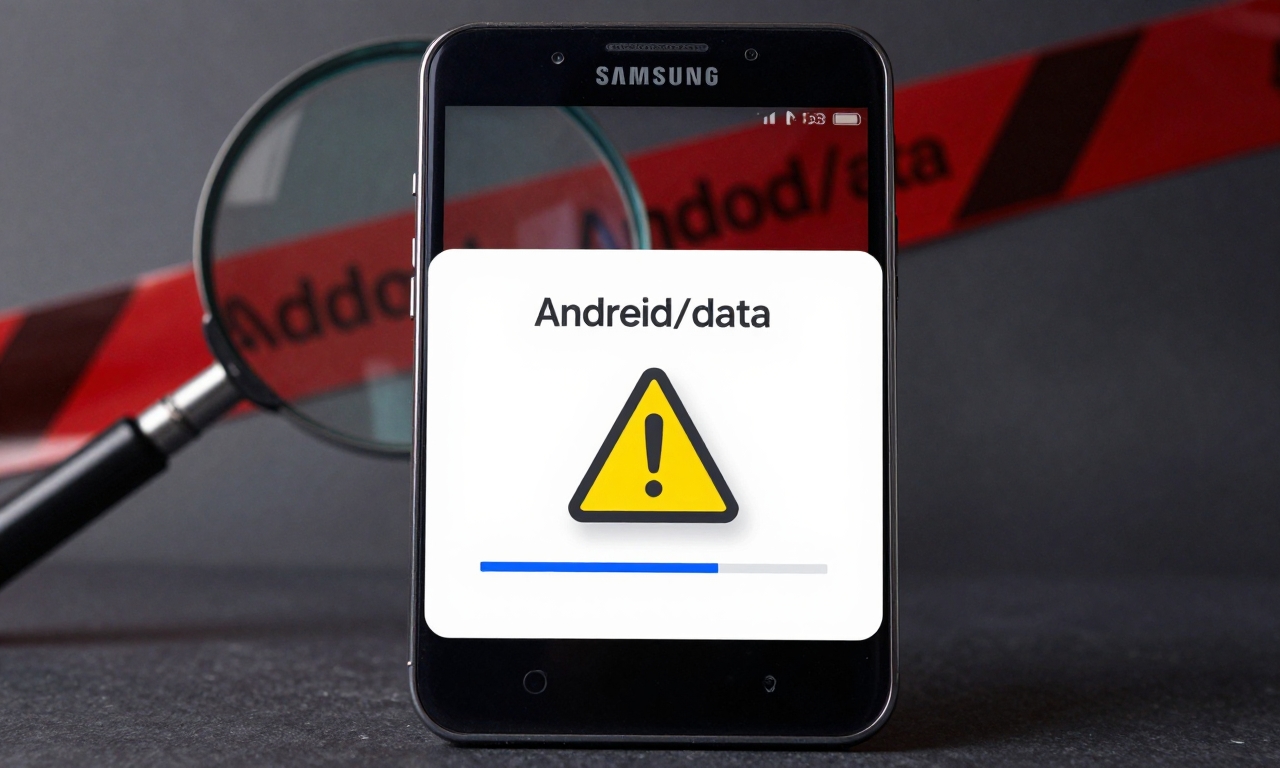
| Android/data folders | App-specific files (often safe to clear after app uninstall) | Low (requires caution) |
For messaging apps, navigate to Internal Storage > WhatsApp (or Telegram) and review the Media and Backups folders. You can often delete sent media files or old backups you no longer need.
Advanced Cleanup Methods and Precautions
Using Third-Party Cleaning Apps (With Caution)
While Samsung’s built-in tools are generally sufficient, some users prefer third-party applications for more aggressive cleanup. If you choose this route:
- Recommended: Files by Google (developed by Google, minimal permissions required)
- Avoid: Applications with excessive ads, fake reviews, or requests for unnecessary permissions
- Always: Review what the app plans to delete before confirming
Third-party cleaners can sometimes identify duplicate files or more obscure temporary data that Samsung’s tools miss, but they also carry higher risk of deleting important files.
What NOT to Do When Clearing ‘Other’ Storage
Based on our analysis of common user errors, avoid these practices:
- Factory Reset as First Solution: This should be an absolute last resort after all other methods fail. A factory reset will delete ALL personal data, requiring complete device restoration.
- Deleting Unfamiliar System Folders: Folders with names like “Android,” “System,” or “Data” may contain critical operating system files. Never delete these entirely.
- Using “Storage Cleaner” Apps with Fake Claims: Beware of apps promising to free up 10GB instantly-they often count system files you cannot safely remove.
- Clearing Data Instead of Cache: Remember that “Clear Data” removes your app settings and login information, while “Clear Cache” only removes temporary files.
When ‘Other’ Storage Indicates Bigger Problems
In rare cases, excessive ‘Other’ storage might signal underlying issues:
- Corrupted Storage: If ‘Other’ storage rapidly increases without explanation, you might have storage corruption. Backup your data and consider professional diagnosis.
- Malware or Adware: Some malicious applications generate excessive log files or temporary data. If cleanup provides only temporary relief, scan for malware.
- Failing Storage Hardware: On older devices (3+ years), storage degradation can cause file system errors that manifest as unexplainable ‘Other’ storage.
Preventative Maintenance and Best Practices
Rather than waiting until ‘Other’ storage becomes problematic, implement these regular maintenance habits:
Establish a Cleaning Schedule
Based on our testing across multiple Samsung devices, we recommend:
- Weekly: Clear cache for your most-used apps (browsers, social media)
- Monthly: Run Samsung Device Care’s storage cleanup
- Quarterly: Review downloads folder and messaging app backups
- Bi-Annually: Perform a comprehensive storage audit using My Files
Smart Storage Habits
Prevent ‘Other’ storage accumulation with these usage patterns:
- Uninstall Apps Properly: Before uninstalling an app, clear its cache and data through Settings > Apps, then uninstall. This minimizes residual files.
- Manage Downloads Consciously: Immediately delete APK files after app installation and remove PDFs or documents after reading.
- Configure App Settings: Many apps have settings to limit cache size or automatically clear temporary files. Explore settings in Chrome, Spotify, and streaming apps.
- Use Cloud Storage Strategically: Services like Google Photos (with backup enabled) and Samsung Cloud can offload media files while keeping them accessible.
Monitoring Your Storage Health
Samsung devices offer several tools to monitor storage trends:
- Storage Settings Dashboard: Check weekly to identify which categories are growing fastest
- Device Care Notifications: Enable notifications for storage warnings
- Third-Party Monitoring: Apps like DiskUsage provide visual storage breakdowns that sometimes offer more detail than Samsung’s native tools
By understanding that ‘Other’ storage is a normal part of Android’s file management system-not a bug or error-you can approach cleanup with confidence rather than frustration. The accumulation of miscellaneous files is simply the digital equivalent of everyday clutter, requiring regular but straightforward maintenance.
Most Samsung users can safely recover significant storage space through the methods outlined above, typically without any risk to their personal data or system stability. Remember that storage management is an ongoing process, particularly as apps become more complex and file sizes continue to grow. With the right knowledge and habits, you can keep your Galaxy device running smoothly with ample free space for what matters most-your photos, apps, and digital life.