Follow us on Facebook
Breaking updates in your feed — tap to open
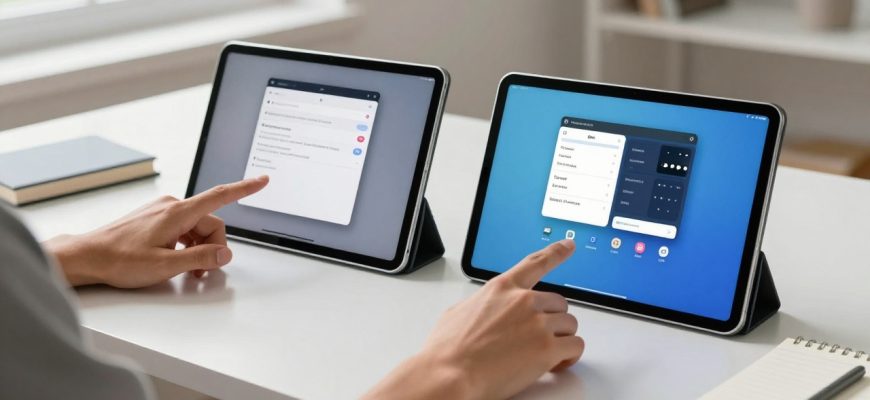
Although modern tablets have the promise of being as productive as laptops, the vast majority of the users hardly apply the full range of multitasking possible on a tablet. They have grown well beyond mere content consumption gadgets, but in the minds of many folks these devices are still used as oversized smartphones instead of taking advantage of their advanced window management systems. This complete tutorial will tell you how to turn your tablet into a real productivity monster, whether you are working out of the office, cramming, or tackling huge projects.
- Learning the Basics of Split-Screen
- Floating Windows for Advanced Multitasking
- Keyboard Shortcuts for Efficiency
- App Pairing to the Maximum
- Advanced App-Specific Features
- Accessories for Enhanced Multitasking
- Streamlining Your Process Between Platforms
- Android Flexibility and Customization
- Technical Considerations for Performance
- Conclusion: Mastering Tablet Multitasking
Learning the Basics of Split-Screen
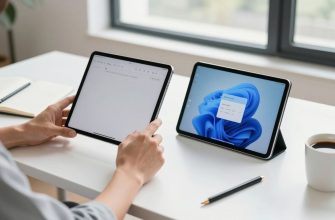
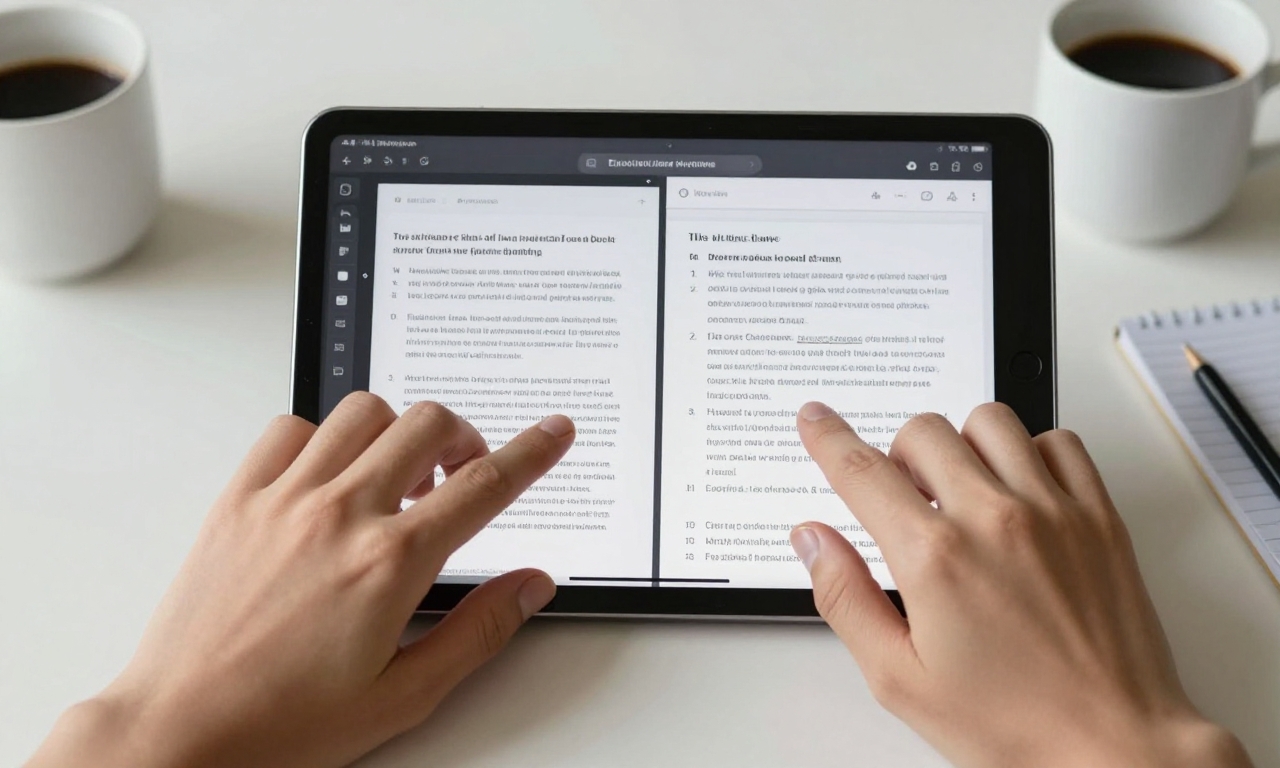
It is essential to comprehend the background split-screen functionality before going into more complicated methods. On iPadOS, one opens an app and then drags another to either side of the screen by accessing the Dock. Android tablets provide the same functionality by means of the recent apps or the multitasking menu. The true strength is to figure out how to customize the divider between applications, adjusting them to fit your workspace requirements. To complete research and writing assignments, you can give up more space on your document and have reference materials available in a thinner panel.
Floating Windows for Advanced Multitasking
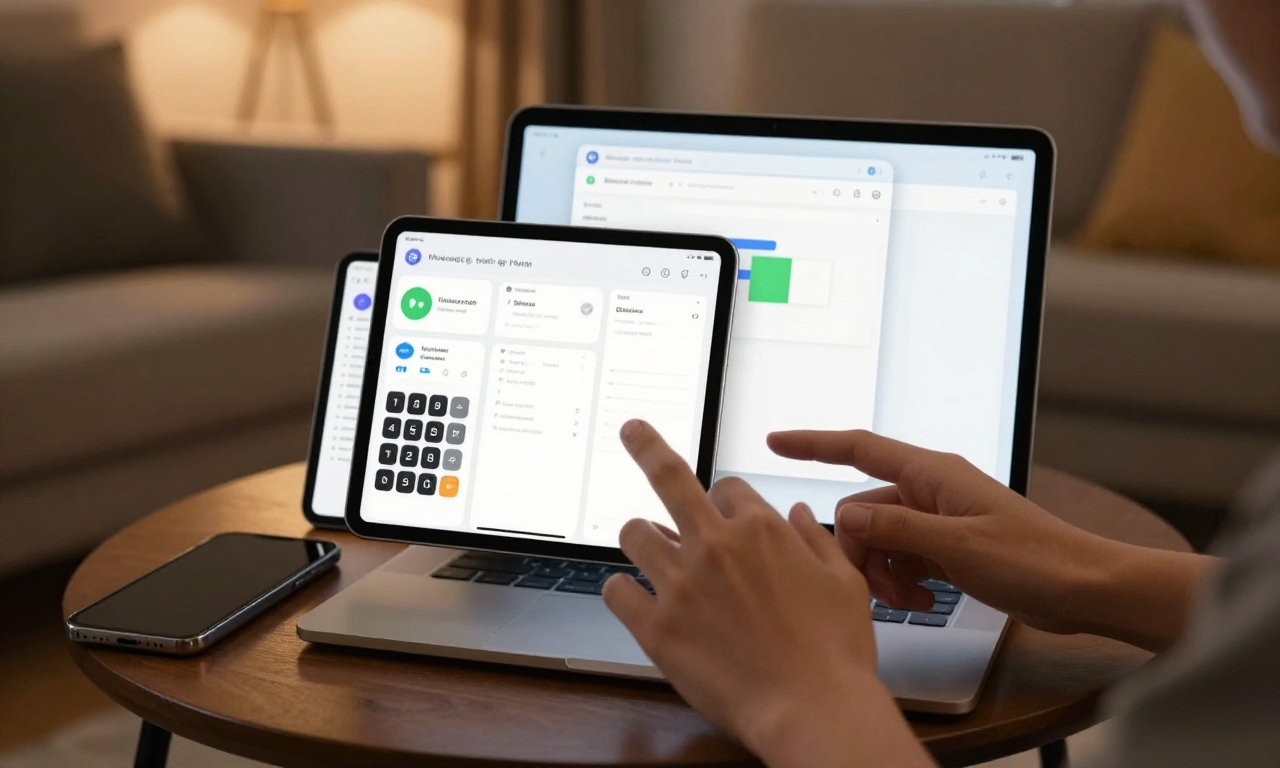
This is the next step in tablet-based productivity, with floating windows that enable you to keep multiple applications in a stacked interface. Slide Over is a floating window that is easily accessed on the side of the iPad screen, which is ideal when you need to message apps, use a calculator, or a note-taking tool that you only require occasionally. Android picture-in-picture is not only limited to video playback, but also to a wide array of applications, whereas Samsung picture-in-picture (under the name DeX) provides a desktop experience on selected Galaxy Tab products. These floating interfaces allow one to really multitask without having to go back and forth between full-screen apps.
Keyboard Shortcuts for Efficiency
Tablet performance is highly efficient with the use of keyboard shortcuts along with compatible keyboards. In iPadOS, Command-Tab works like the macOS to alternate among applications, and Command-Space is used to activate Spotlight to quickly search. Android tablets have several different keyboard shortcuts supported by the manufacturer and Android version, many of which look like Windows Alt-Tab. These shortcuts will turn your tablet into a touch-first device, accelerated device into a hybrid productivity machine that walks the line between ordinary computers and mobile devices.
App Pairing to the Maximum
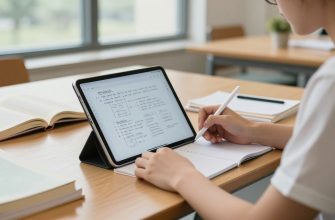
In addition to technical features, the art of tablet multitasking is found in strategic app pairing. A web browser could be used alongside a note-taking platform, such as Notability or OneNote, and creative workers could use Adobe Fresco with reference images in a floating window. Students would have an effective studying experience by displaying a textbook PDF and note-taking app side by side. It is important to know what applications are complementary in your specific workflow and how to quickly create these pairings.
Advanced App-Specific Features
Multitasking can also be done by advanced users, which will learn app-specific features in multitasking beyond what the operating system provides. Various productivity apps also provide split-view features or panel systems that complement multitasking that are built in the tablet itself. E.g. a document editor may enable you to have many parts of the same document open at the same time, and a code editing program may enable a side-by-side comparison of files. Workflows formed by these specialized features combined with system-level multitasking is very powerful and on par with desktop computing environments.
Accessories for Enhanced Multitasking
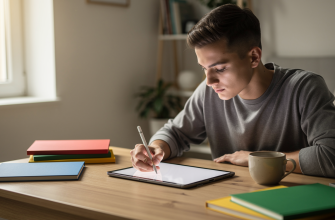
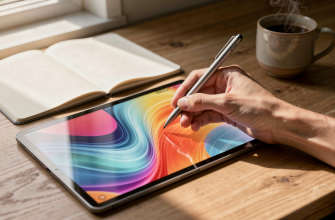
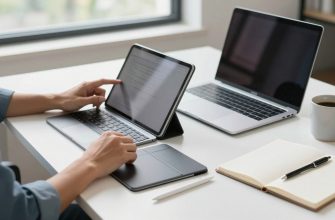
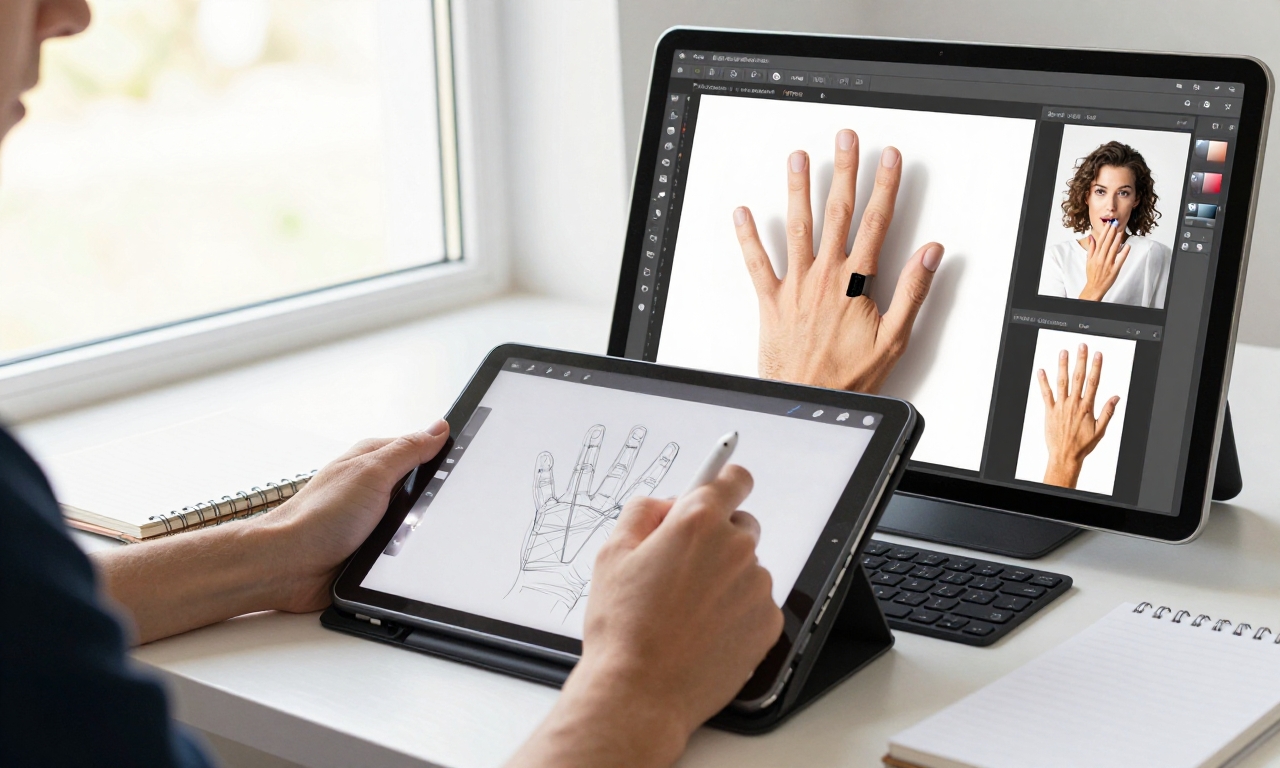
Tablet accessories give a substantial and noticeable improvement to the multitasking experience, and stylus support is particularly transformative to some workflows. Apple Pencil on iPad and S Pen on Samsung Galaxy Tab devices allow input tailored accuracy to touch and keyboard communication. A stylus can be used to take notes in a split-screen setup, where you can write with natural handwriting and notably diagram, leaving your reference material on the screen. Equally, trackpad based keyboard cases enhance effective navigation in complicated multitasking situations, eliminating the requirement to keep on accessing the screen.
Streamlining Your Process Between Platforms
All tablet operating systems have their own benefits to multitasking that are specific to user tastes, iPadOS has an exceptionally consistent experience across all devices, and there is an ecosystem of well-optimized applications. The Stage Manager control that is present on more recent iPad models presents a more desktop-like window management that allows overlapping windows of different sizes. This is what Apple wants its tablet to be productive, but with the right hardware this can work to its best effect.
Android Flexibility and Customization
Android tablets have been more flexible in certain ways, with companies such as Samsung adding their own advanced multitasking veneers to the foundation of Android. The DeX feature of Samsung, which comes with the high-end Galaxy Tab models, fundamentally makes the tablet look like a desktop when attached to an external monitor. This two-tuple feature is what makes Android tablets highly responsive to users who require a mobile convenience and desktop power in the same device. The open nature also enables greater customization of the multitasking experience by use of third-party applications.
Technical Considerations for Performance
- Speed is an important objective when operating several applications at once, and processor speed and RAM are worth considering.
- The quality of display used is also a factor affecting the experience, and higher refresh rates are considered to have a smoother transition between applications and split-screen.
- Maximizing battery life is critical during the intensive multitasking session, when using multiple applications at the same time, the use of multiple apps consumes more power as compared to the use of single applications.
Conclusion: Mastering Tablet Multitasking
Learning to multitask with the help of a tablet changes your perspective on work and study on mobile gadgets. The experience of using split-screen can move to more advanced workflows, with floating windows, keyboard keys and purposeful combinations of applications. Learning curve is influenced by the platforms but the productivity payoff will justify investment in learning how to master these techniques. Since tablets will close the existing gap between smartphones and laptops, their window management systems will evolve to a higher level, and now is the ideal moment to acquire these necessary abilities.
However, at the end of the day, mastering the art of tablet multitasking does not lie in the ability to use all features concurrently, but in knowing when to use what tools to perform a particular task. A straightforward two-app split screen is useful in some projects, and the stratification of multiple floating windows is necessary in others. The most productive users of tablets are aware of the technical features of their devices as well as the cognitive features of managing several information flows. And after recognizing tablet multitasking as a technical and workflow optimization issue you will be able to achieve a level of productivity that can actually justify the laptop-like pretensions of these devices.