Follow us on Facebook
Breaking updates in your feed — tap to open
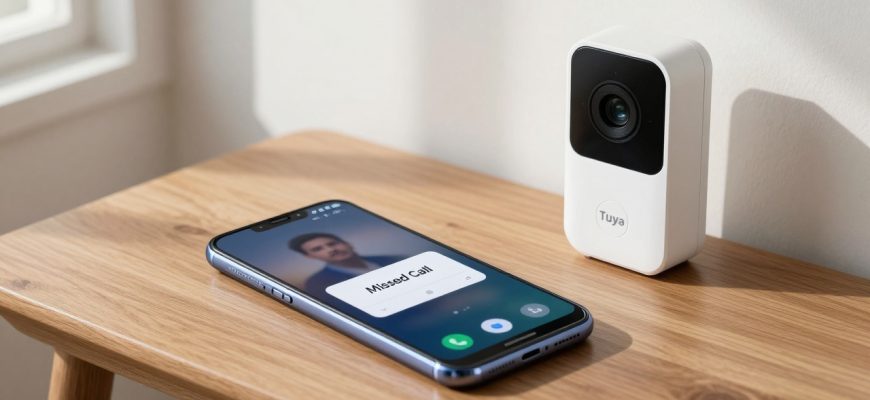
If you’ve invested in an affordable Tuya or Smart Life-compatible video doorbell only to find it unreliable on your Samsung Galaxy device, you’re not alone. A widespread issue plagues Samsung Android users where doorbell notifications mysteriously vanish when the app is minimized, closed, or the screen is locked. This frustrating problem means missed visitors, compromised security, and a smart home device that fails at its most basic function.
The root cause isn’t your doorbell hardware or even the Tuya/Smart Life app itself. Instead, it’s Samsung’s notoriously aggressive battery optimization system and its labyrinth of special permissions that silently block critical background processes. While standard troubleshooting steps might offer temporary relief, there’s one hidden setting that consistently delivers a permanent fix.
- The Core Problem: Samsung’s Aggressive Optimization Meets Smart Home Apps
- Why Standard Fixes Often Fail
- Disabling Battery Optimization
- Allowing Background Data Usage
- Locking the App in Recent Screens
- Verifying Overlay Permissions
- The Definitive Solution: Full-Screen Notification Access
- Step-by-Step Implementation Guide
- Understanding the Tuya/Smart Life Ecosystem
- When to Consider Alternative Solutions
- Preventing Future Issues
The Core Problem: Samsung’s Aggressive Optimization Meets Smart Home Apps
Samsung’s Android implementation, particularly through its One UI interface, prioritizes battery life above almost everything else. This philosophy leads to systems that automatically restrict background activity for apps not frequently used. For security and notification-reliant applications like video doorbell controllers, this creates a fundamental conflict.
Tuya and Smart Life apps (which are essentially the same platform with different branding) require continuous background operation to listen for doorbell triggers. When Samsung’s optimization kicks in, it prevents these apps from:
- Maintaining persistent network connections to doorbell devices
- Processing incoming video call requests in the background
- Displaying instant push notifications when the screen is off
- Showing full-screen pop-up alerts for live video calls
This isn’t a bug in the traditional sense-it’s a deliberate system behavior that unfortunately breaks specific use cases. Most users discover the problem gradually: notifications work fine during active phone use, then become intermittent, and eventually stop entirely when the phone enters deep sleep modes.
Why Standard Fixes Often Fail
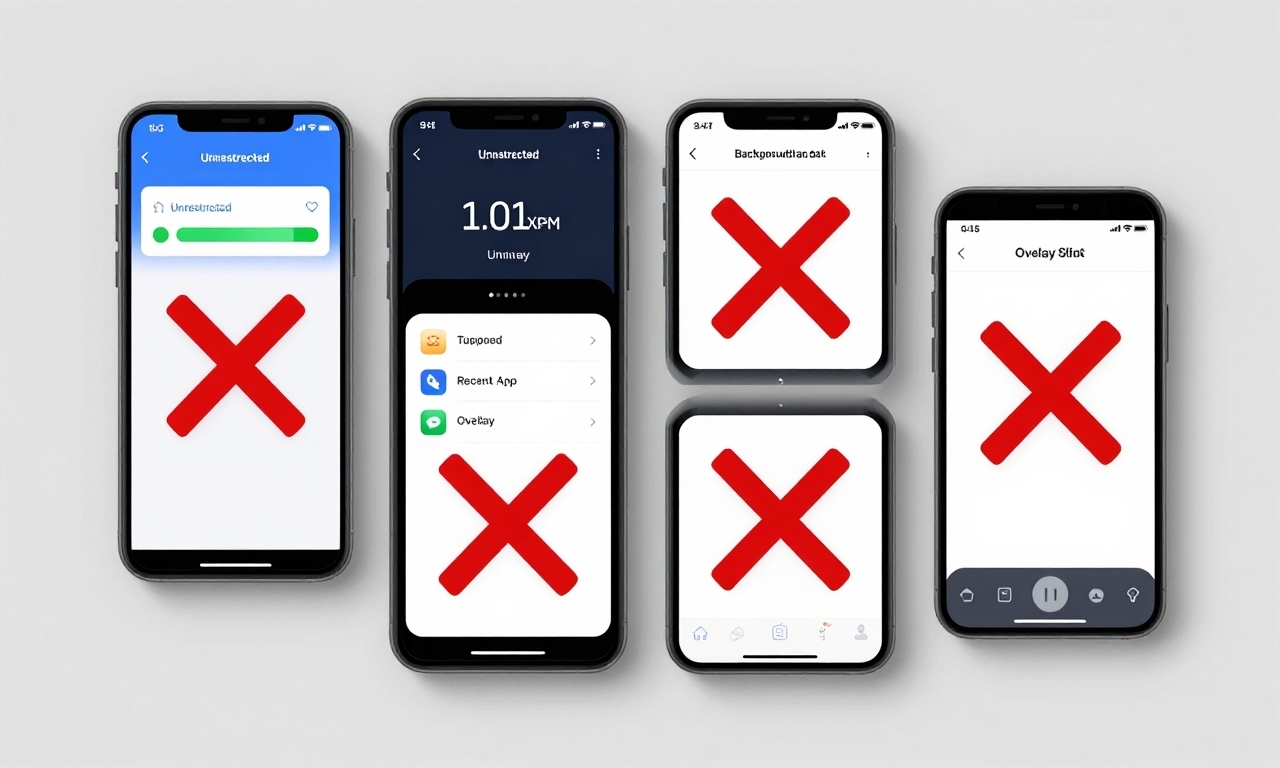
Before reaching the definitive solution, most users and support forums recommend several common troubleshooting steps. While these are necessary prerequisites, they’re frequently insufficient on their own:
Disabling Battery Optimization
Going to Settings > Apps > [Tuya/Smart Life] > Battery and selecting “Unrestricted” seems like it should solve everything. While this helps, Samsung has additional layers of restriction that still interfere with notification delivery.
Allowing Background Data Usage
Ensuring the app can use mobile data and Wi-Fi in the background is crucial, but again, this addresses only one piece of the puzzle. The app might have data access but still be prevented from displaying interfaces.
Locking the App in Recent Screens
Keeping the app pinned in your recent apps list can prevent immediate termination, but it’s an unreliable workaround that fails after system updates, reboots, or memory pressure.
Verifying Overlay Permissions
Some guides suggest checking “Draw over other apps” permission, but this controls different behavior than the notification pop-ups needed for doorbell calls.
The limitation of these approaches is that they don’t address the specific permission that controls full-screen, interruptive notifications-the exact type needed for a video doorbell call to break through whatever you’re doing on your phone.
The Definitive Solution: Full-Screen Notification Access
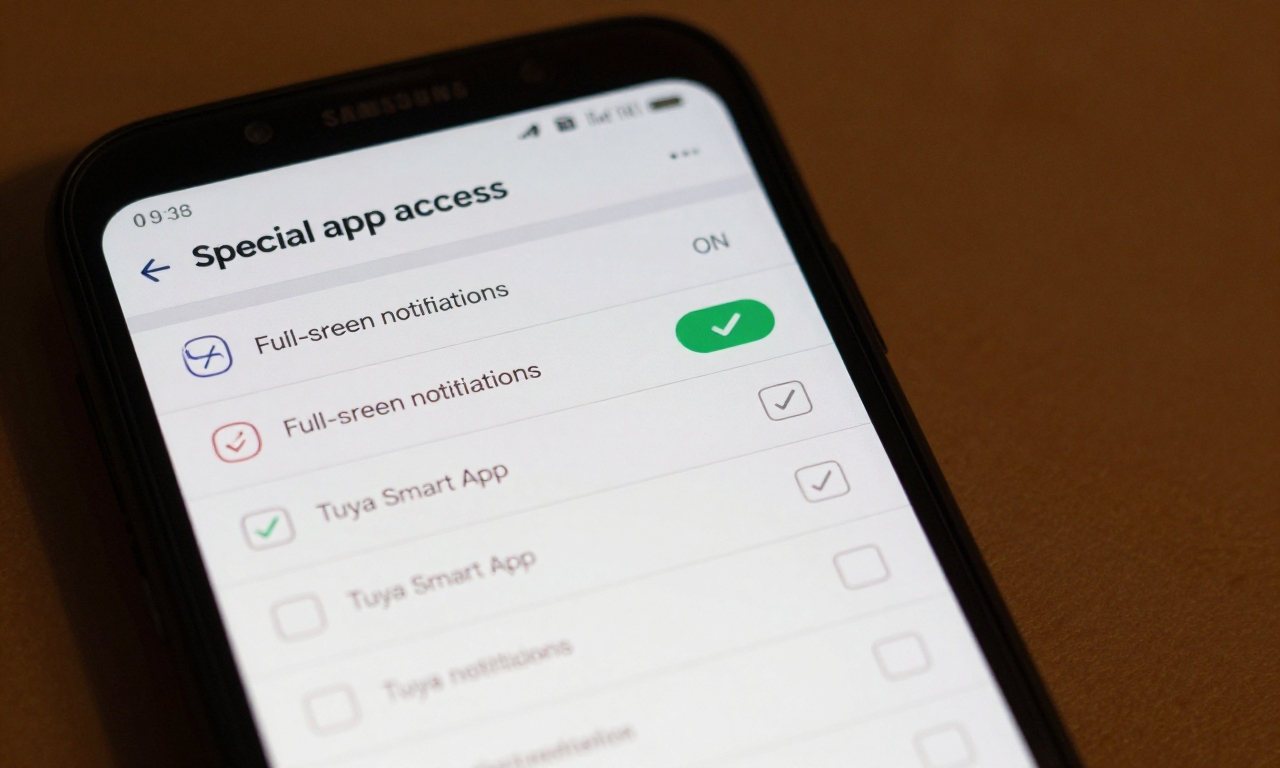
The breakthrough comes from a deeply buried Samsung-specific setting called “Full-Screen Notification Access” (sometimes labeled slightly differently depending on your One UI version). This permission directly controls whether apps can display pop-up interfaces when running in the background-exactly what Tuya and Smart Life need for instant doorbell alerts.
When enabled, this permission allows the apps to use Samsung’s “Pop-up interface in the background” and “Full-screen notification permission” systems. These aren’t standard Android features but Samsung additions that require explicit user approval.
Tech Insight: Unlike regular notifications that appear in your shade, full-screen notifications are system-level interruptions that can display over lockscreens, other apps, and during media playback. This is why they require special access separate from standard notification permissions.
Step-by-Step Implementation Guide
- Open Samsung Settings: Navigate to your phone’s main Settings app (not the Tuya/Smart Life app settings).
- Access Special App Access: Scroll to and tap “Apps” then select “Special app access.” This menu might be under “Additional settings” or similar depending on your One UI version.
- Find Full-Screen Notifications: Look for “Full-screen notifications,” “Display over other apps,” or similar phrasing. In some versions, it’s under “Notifications” > “Advanced settings” > “Full-screen notifications.”
- Enable for Your Doorbell App: Find either “Tuya Smart” or “Smart Life” in the list and toggle it ON. You might need to toggle a master switch first.
- Verify Additional Settings: While in Special app access, also check “Battery optimization” to ensure your app is set to “Don’t optimize” and “Modify system settings” is enabled.
- Test Thoroughly: Have someone ring your doorbell while your phone screen is off, while using another app, and while the Tuya/Smart Life app is completely closed from recent apps.
| Setting Location | What to Enable | Expected Result |
|---|---|---|
| Special App Access | Full-screen notifications | Pop-up video calls over lockscreen |
| Battery Optimization | Don’t optimize | Background process persistence |
| App Notifications | All categories enabled | Regular push notifications |
Understanding the Tuya/Smart Life Ecosystem
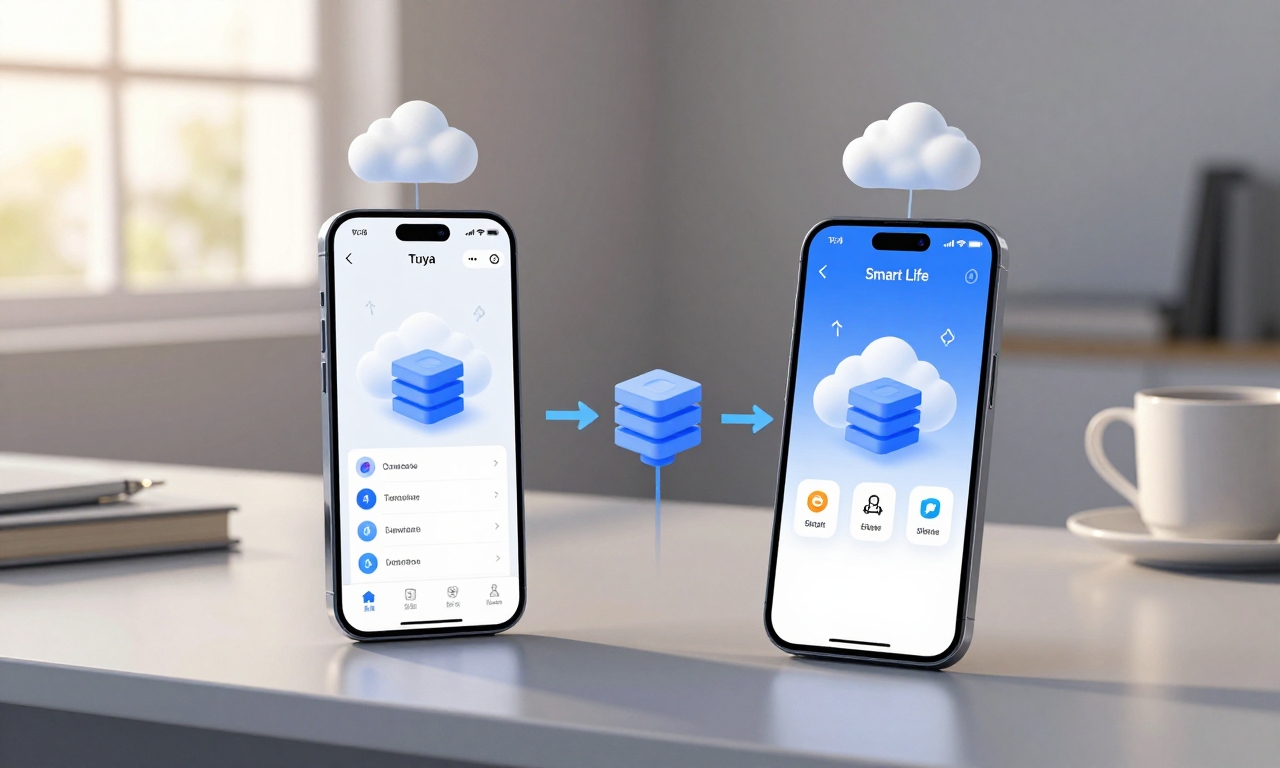
Many users don’t realize that Tuya and Smart Life are essentially the same platform. Tuya is the underlying IoT technology provider, while Smart Life is one of their consumer-facing apps. Different device manufacturers might bundle either app, but they connect to the same cloud infrastructure.
This standardization is actually beneficial for troubleshooting-the solution works identically regardless of which app icon you have installed. Both require the same Samsung permissions because they use identical notification mechanisms and background processes.
Pro tip: If you have both apps installed (perhaps from different devices), you’ll need to enable the permission for each one individually.
When to Consider Alternative Solutions
If after implementing all steps you still experience issues, consider these additional factors:
- Device-Specific Variations: Older Samsung models or those with heavily modified carrier firmware might have slightly different menu structures.
- Network Configuration: Ensure your doorbell has stable Wi-Fi and isn’t being blocked by firewall rules or VPNs.
- App Updates: Both Samsung system updates and Tuya/Smart Life app updates can occasionally reset permissions.
- Alternative Notification Methods: Some doorbells support email alerts or integration with Google Home/Alexa as backup notification channels.
Preventing Future Issues
Once you’ve successfully configured your Samsung device, take these preventive measures to maintain reliable doorbell notifications:
- After major Android or One UI updates, re-check the special access permissions as they sometimes reset.
- Avoid using “Memory cleaner” or “Phone booster” apps that aggressively kill background processes.
- If you use Samsung’s “Device care” automation features, ensure your doorbell app is on the exception list.
- Consider keeping the Tuya/Smart Life app in “Never sleeping” mode if your Samsung device offers this option.
- Regularly test doorbell functionality by having family members ring it while you’re using your phone in different states.
The intersection of budget-friendly smart home devices and sophisticated smartphone optimization systems creates these unique troubleshooting challenges. By understanding Samsung’s permission architecture and specifically enabling Full-Screen Notification Access, you can transform an unreliable doorbell into a consistently responsive security asset. This solution highlights how modern tech ecosystems require users to navigate hidden settings to make different products work harmoniously-a small price to pay for affordable smart home functionality on premium Samsung hardware.