Follow us on Facebook
Breaking updates in your feed — tap to open
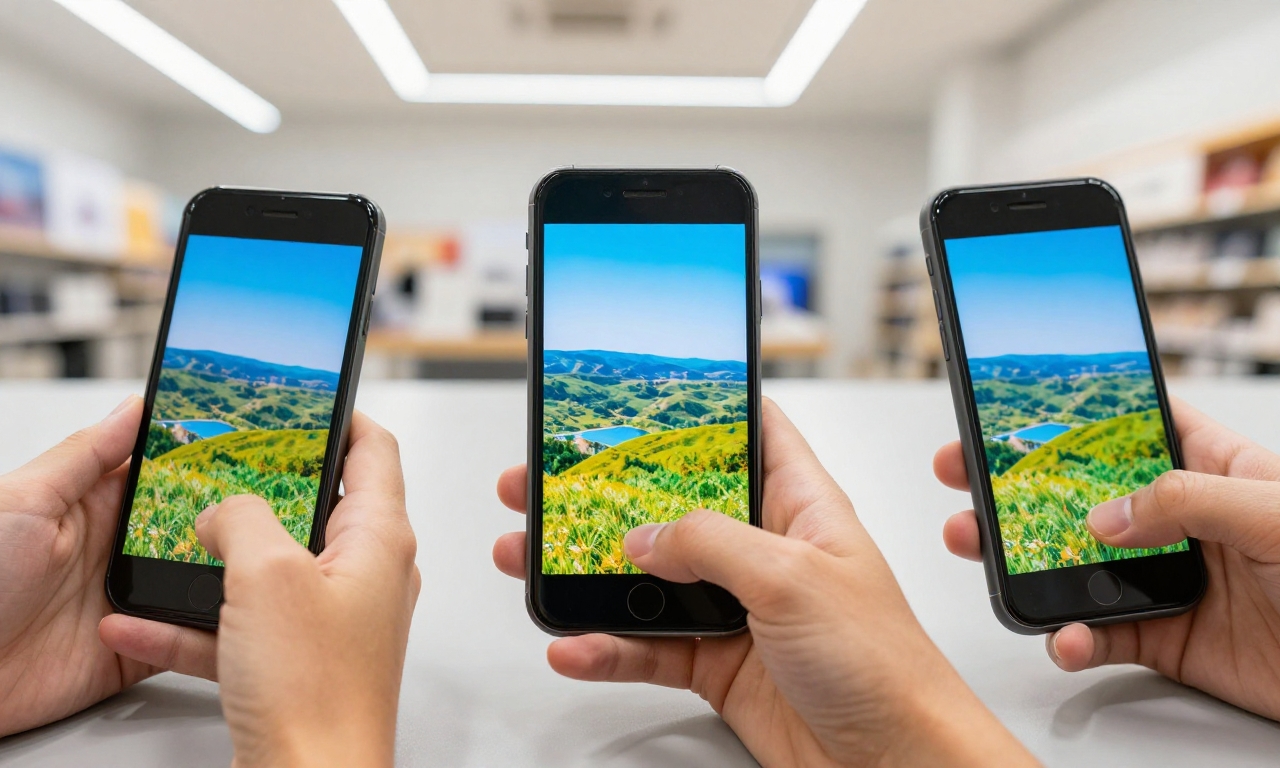
The majority of smartphone users are never aware that their display is not portraying the real colors. Most factory environments are more vibrant and saturated to ensure that images are showing up well in the store lighting, though this method undermines the quality of photography, video editing, or even daily media usage. The difference can be especially evident when the same image is displayed on various devices or when trying to perform a color-critical work.
- Understanding Display Technology
- Why Accuracy of Display is Important to Your Workflow
- Built-in Display Settings for Calibration
- Android Device Settings
- Free Calibration Apps
- Step-by-Step Calibration Process
- Real-world Calibration Methods in Other Applications
- Maintenance and Advanced Methods
- Advanced Calibration Techniques
- Benefits Beyond Creative Work
- Embracing Calibration in Your Mobile Ecosystem
Understanding Display Technology
To see the importance of calibration, it is first important to understand the way displays work. OLED or higher-quality LCD displays are the most common in modern smartphones, and each of them has its peculiarities when it comes to color reproduction. The OLED displays have deeper blacks and greater contrast ratios, whereas the highest-quality LCDs can be highly accurate in color when properly calibrated. The problem is that manufacturers use aggressive color profiles by default to provide a visual experience that would be at once attractive.
Why Accuracy of Display is Important to Your Workflow
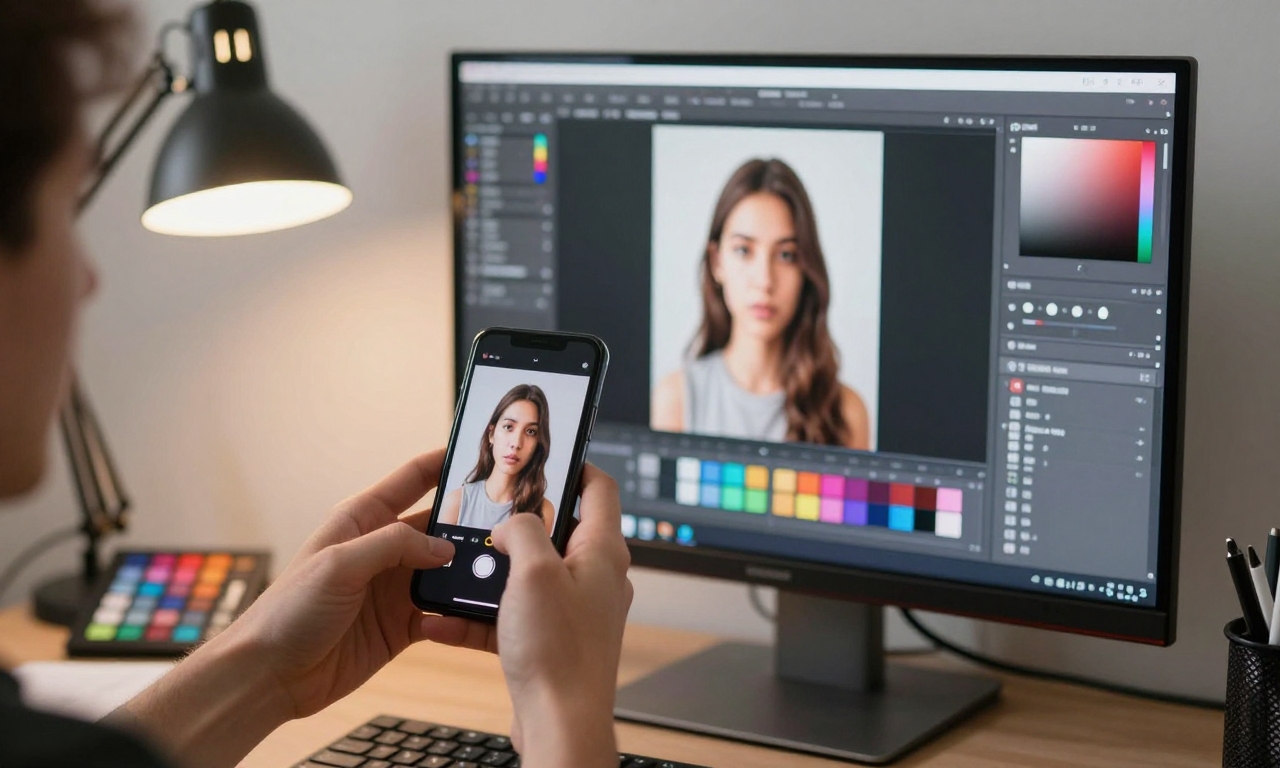
To photographers and content creators, hours of editing every image may be thrown away due to an uncalibrated display. Photos will be purple on the correct calibrated monitors but will be cool and de-saturated on the wrong calibrated monitors, and videos that have been graded with incorrect colors will be incorrect on different monitors. Calibration is also useful even to casual users viewing HDR content or comparing products online where color depiction is an important factor in the purchasing decision. The positive aspect is that the reasonable accuracy can be obtained without costly gear.
Built-in Display Settings for Calibration
Calibration is based on built-in display settings. Both Android and iOS have accessibility options and display settings that can substantially enhance color accuracy. True Tone on iPhones and iPads automatically changes the white balance according to the ambient light and disabling it is recommended when one needs to make a critical work, creating a stable baseline. The Color Filters accessibility feature has a grayscale mode that can be used to test contrast, and the White point Reduction slider can also be used to address oversaturation in the colors.
Android Device Settings
Android devices provide more control with developer options and vendor-specific settings.
- Galaxy phones have several screen modes in the display options, and the Basic mode offers the most precise color profile.
- Google Pixel devices have Natural color mode, following sRGB standards to a minor extent.
- Oneplus phones have a Pro mode where the color temperature and gamma can be adjusted.
These internal functions will not be at par with professional calibration, but they make a good starting point.
Free Calibration Apps
Free calibration apps push the accuracy to the next phase without any technical skills.
- Display Tester is an all-in-one Android testing software with gradients, grayscale, and touchscreen testing.
- Screen Balance provides the same functionality on iOS users with test patterns and adjustment suggestions.
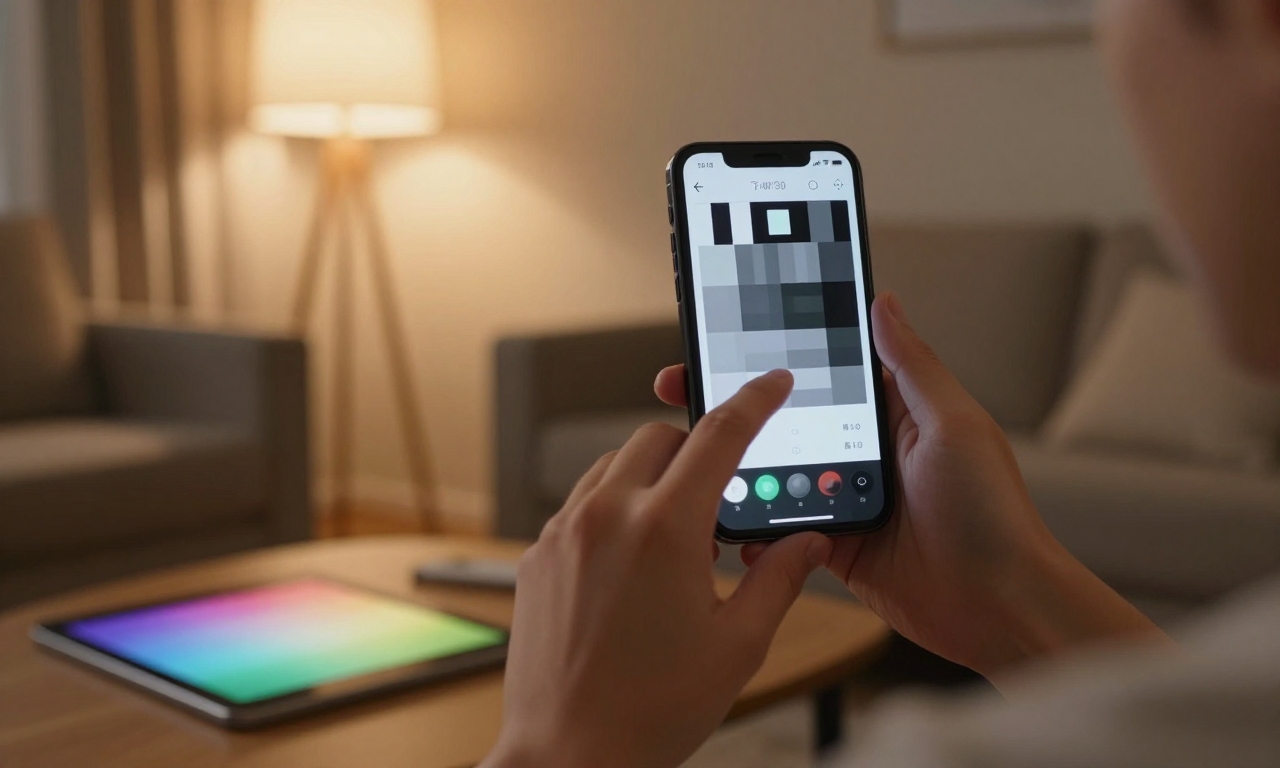
The apps are designed to show standardized patterns of color that will tell you whether your display is tracking the grayscale, covering the color gamut, and showing the right gamma curve.
Step-by-Step Calibration Process
The process of calibration has a logical sequence despite what device you are using.
- Restart your display with factory settings to get rid of any old settings.
- Adjust the brightness to about half in an average light environment- not total darkness, it will also influence the perception.
- Calibrate the color temperature using a test pattern of grayscale on a calibration application, adjusting it until whites show no blue or yellow hue.
- Then consider primary color schemes to make the reds, greens, and blues look sharp and well-saturated.
Real-world Calibration Methods in Other Applications
The accuracy of the sRGB color space should be considered as a priority in photography enthusiasts as the majority of web-based content and social media platforms that utilize this standard. Video editors who handle mobile footage may be interested in wider gamut content, but this needs more sophisticated tools. Players might desire to keep the color alive to create effect but still decide to have shadow in their dark scenes. All of the use cases have slightly different priorities when it comes to calibration, yet they all start with a neutral baseline.
| Feature | What it enables | Best for | Notes / limits |
|---|---|---|---|
| sRGB color space | Accurate web and social media colors | Photography enthusiasts | Standard for most online content |
| Wider gamut content | Enhanced color range for video | Video editors | Requires more sophisticated tools |
| Vibrant colors with shadow detail | Balanced gaming visuals | Players | Prioritizes effect over strict accuracy |
Maintenance and Advanced Methods
Calibration is also maintained with routine maintenance to ensure effectiveness over time. It is possible that OLED displays might have slight changes in color as pixels age whereas LCD backlights might shift color temperature as they age. It is good to re-calibrate every few months, particularly when doing work that requires color accuracy. Environment is also important, where the same calibration may require re-adjustment in your home office, but may be inappropriate in fluorescent office lighting or the sunlight at outdoors.
Advanced Calibration Techniques
Advanced users have the possibilities of using other methods of precision work.
- Making your own profile of a color based on computer software and then applying this profile to your phone offers a high level of accuracy and is truly professional.
- Color calibration cards are photographed under standard lighting by some photographers to provide reference points.
Although more effort is given, these methods provide similar results to professional monitor calibration in mobile workflows.
Benefits Beyond Creative Work
The advantages go beyond creative work to ordinary uses of the cell phone.
- When the display is properly calibrated, it eliminates unnecessary blue light and should result in reduced eye strain in cases of extended reading.
- Literacy in web browsing improves when colors in shopping web pages, photos in news areas and those on social media become visible as expected.
- Simple things, such as comparing samples of paint or clothing found online, also appreciate proper representation of colors.
Embracing Calibration in Your Mobile Ecosystem
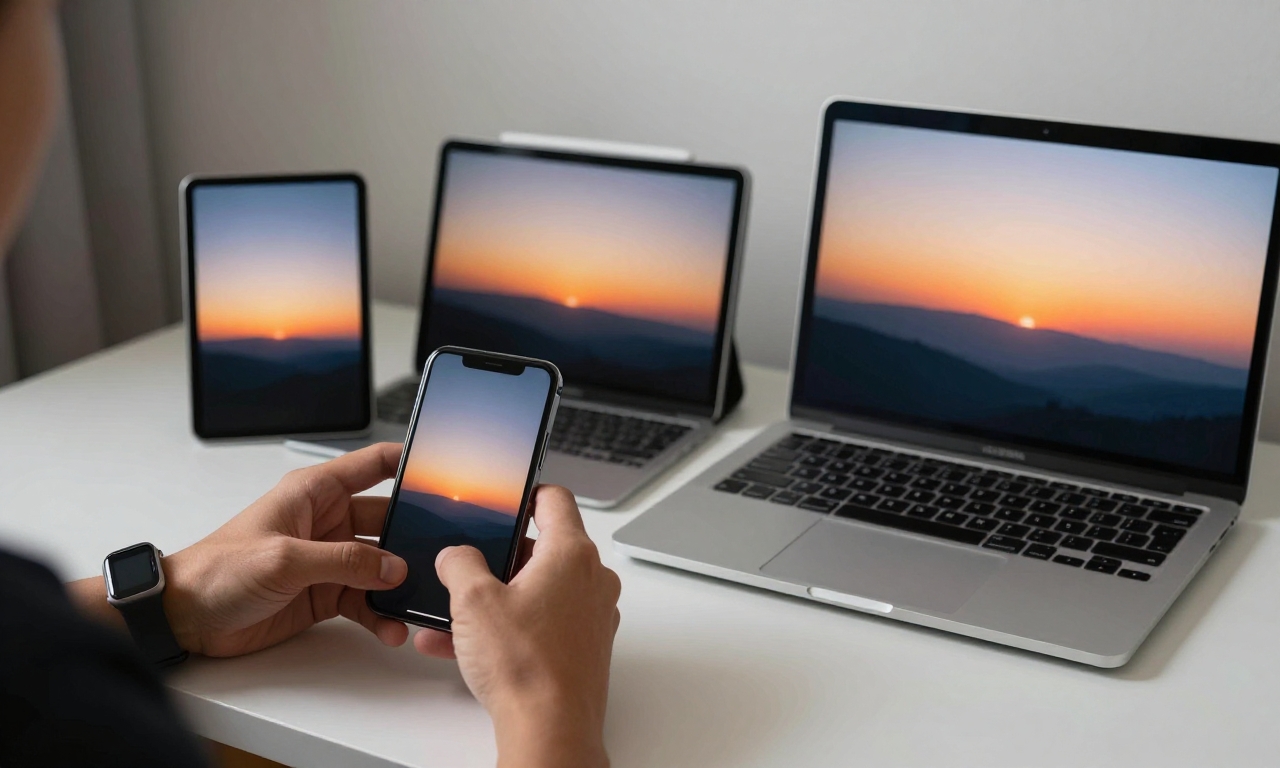
Homogeneity amongst devices, makes the view seamless. Setting your phone to display the same colors as your tablet, laptop, and smartwatch will make the colors consistent when you change devices. This is extremely useful when the project is started on the mobile devices and proceeded on workstations. The process also allows highlighting the distinctions of display technologies so that you can learn, which device has its strengths and weaknesses.
No mobile calibration can ever be as good as professional studio monitors, but the results that can be achieved with free tools and includes settings are significant. Even twenty minutes spent by following this guide can change the way you view everything on your smartphone, whether it is a photo of your vacation or a business presentation. The more display technology grows with an increased refresh rate and larger color gamut, the more you will need to know about calibration to get the best out of your device.